
You may have seen coworkers who hand their weekly reports, research, and meeting notes over to AI and leave work right at 6 p.m. But when you open an AI tool yourself, you are still stuck in a back-and-forth conversation—you have to explain the context over and over, correct the format again and again, and eventually it feels less like using a tool and more like matching wits with AI.
The difference may not be how they talk to AI. It may be that they are using an AI Agent that can carry out tasks—think of it as an AI assistant that can actually do the work on its own.
This chapter does not cover complicated concepts or ask you to write code. I will guide you through the complete process in the Codex App: prepare an empty folder, configure the basics, let Codex install a company Skill library on its own—a collection of methods that other people have developed and packaged together—and finally use an existing Skill to review an article. You will not need the command line at any point. Just follow the steps. Once you see Codex actually take action and leave behind a result, you will have completed the most important first step.
If everything goes smoothly, the full walkthrough should take about twenty to thirty minutes. Every step includes a screenshot, so you can simply follow along.
This chapter assumes that you already know how to register for, install, and sign in to Codex, so those steps are not covered here.
Why Use an Agent?
A regular chat AI mainly “answers” you: you ask something, it replies; you add a detail, it revises a little. An AI Agent is different—you give it a goal, and it carries out the task step by step. It can inspect files, perform the necessary actions, check the results, and write those results back to files.
| Regular chat AI | AI Agent |
|---|---|
| You ask a question, and it gives an answer | You give it a goal, and it breaks the work into steps and executes them |
| Mainly provides advice and text | Can read files, run commands, call tools, and inspect results |
| You have to explain the context again each time | Can reuse established ways of working |
| More like a consultant | More like a hands-on assistant |
You do not need to understand every detail yet. First, experience the process once: give Codex a clearly defined task and let it actually get to work.
What a Skill Does
An Agent can take action, but it does not necessarily know how you prefer to work: which content should be checked against an approved source first, when it must not make changes directly, how meeting notes should be archived, or which statements in a retrospective are too vague to be useful. Normally, you would have to explain these things every time.
For now, think of a Skill as a working method for an Agent. It tells the Agent when to use that method, which steps to follow, what to produce, and when it needs to stop and ask you a question.
A prompt solves “how should I explain this task right now?” A Skill solves “how should this kind of work be done from now on?”
This chapter will not ask you to write a Skill. You only need to use Codex to complete one installation task, then try a Skill yourself and see what it does.
Step 1: Prepare a Folder—Codex's Main Workspace
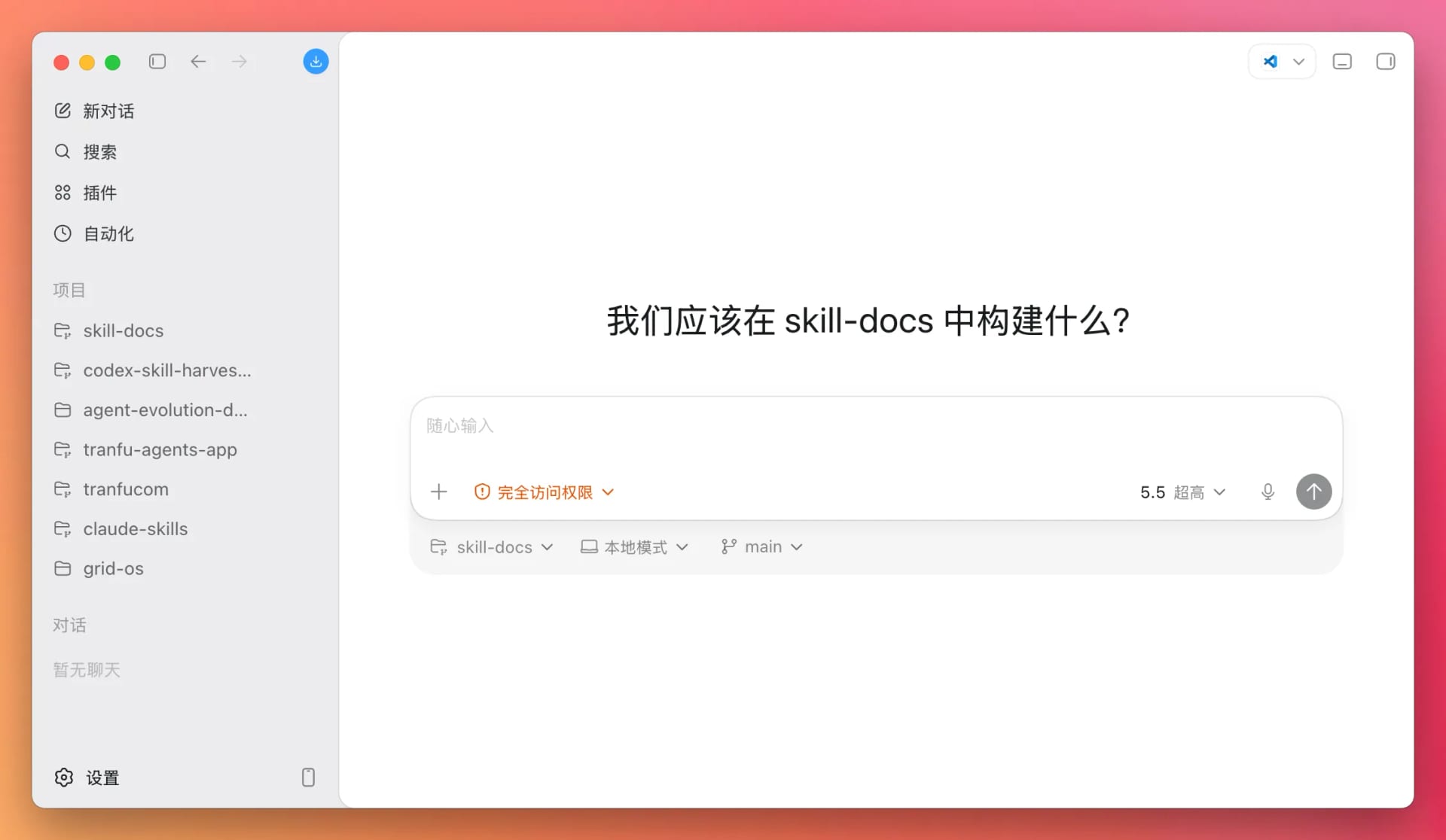
Codex needs a folder in which to work. It will read files, write files, and run checks inside that folder, so the folder is its workbench. Without a folder, Codex can only chat with you and cannot demonstrate the real value of an Agent.
There is one simple rule worth adopting from the beginning when you organize these folders:
One project, one folder.
This has two benefits:
- File isolation: each project's outputs stay in their own place. Files that Codex creates or edits will not become mixed up with other materials or accidentally affect your official documents.
- Context isolation: Codex can only see the content in the current folder. The more focused that folder is, the more accurately Codex can understand what you are working on without being distracted by unrelated materials.
For your first attempt, create an empty folder on your desktop and name it codex-tranfu-demo. You already know how to create a folder, so we will not spend time on that. The part that deserves a little attention is how to open it in Codex.
Open Codex and look for an entry point similar to this one—the label may vary slightly between versions:
- Move your cursor over the “Projects” row
- A folder icon with a plus badge will appear on the far right; click it
- Select “Use existing folder”
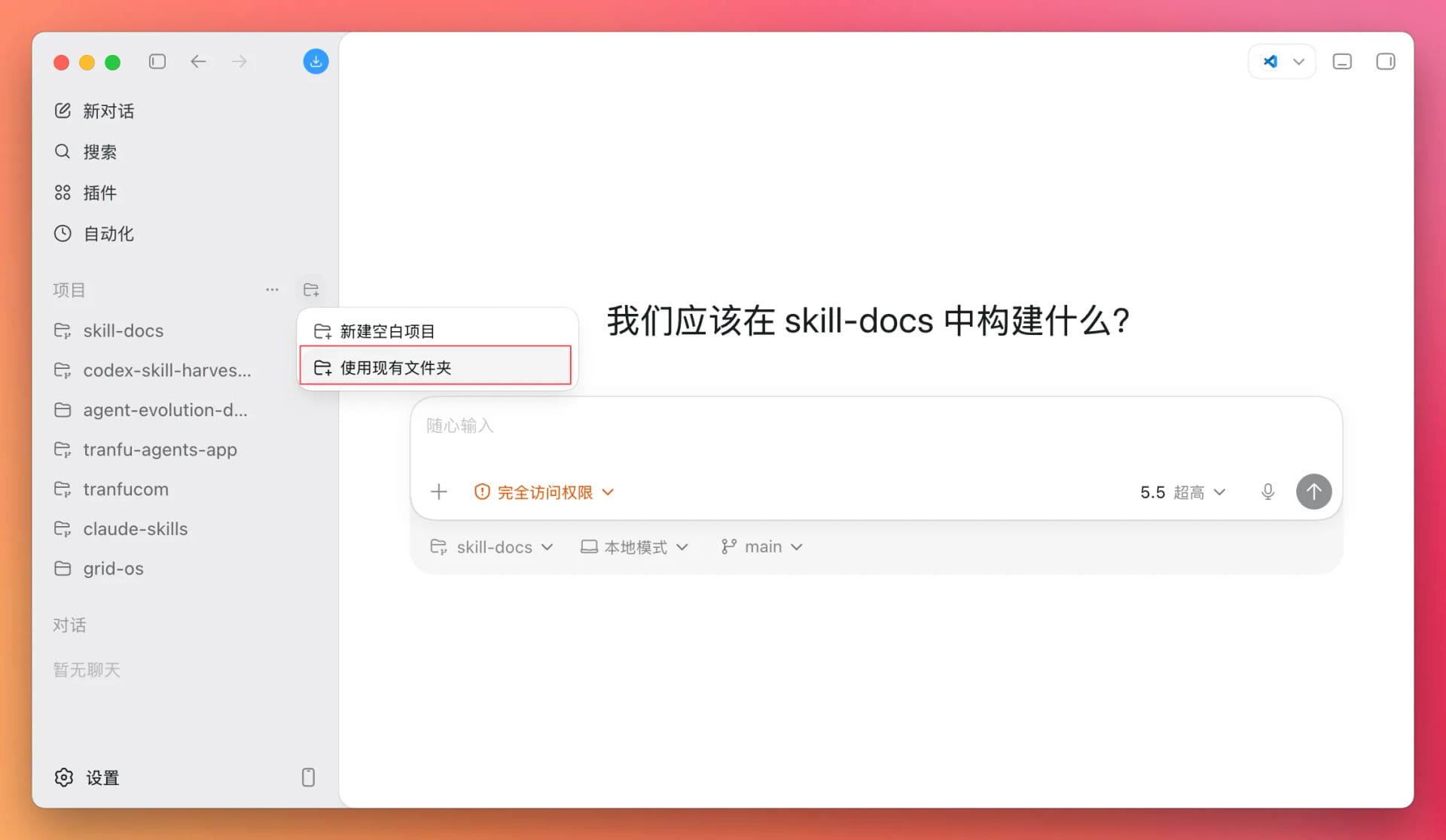
Select the codex-tranfu-demo folder you just created. If Codex asks you to confirm whether you trust this folder, you can safely confirm—it is the empty folder you just created, so there is nothing inside it.
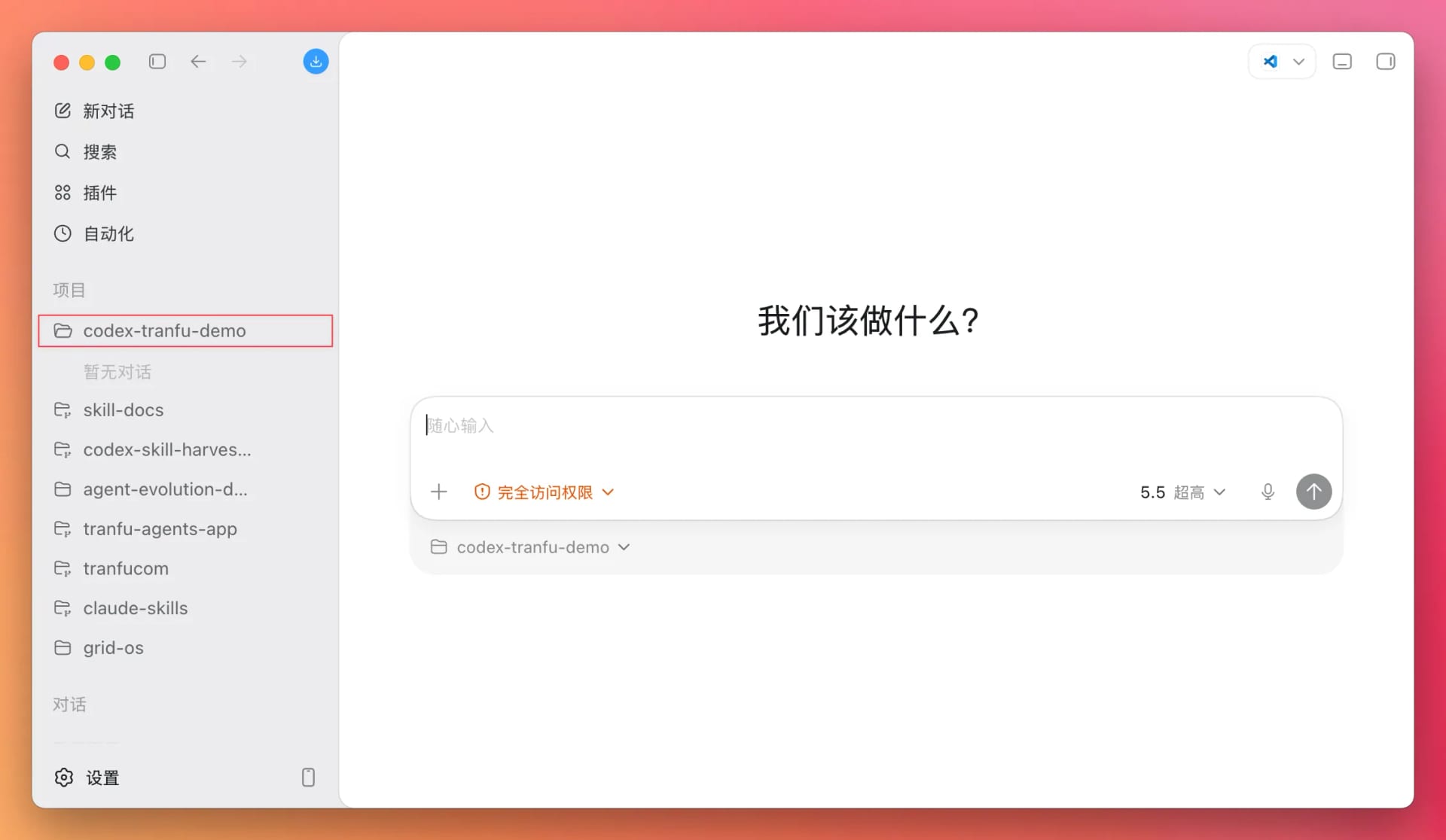
Once it is open, it should look like this.
If you opened the wrong folder, do not worry. Exit and select codex-tranfu-demo again.
Step 2: Configure the Basics—Let Codex Work Freely
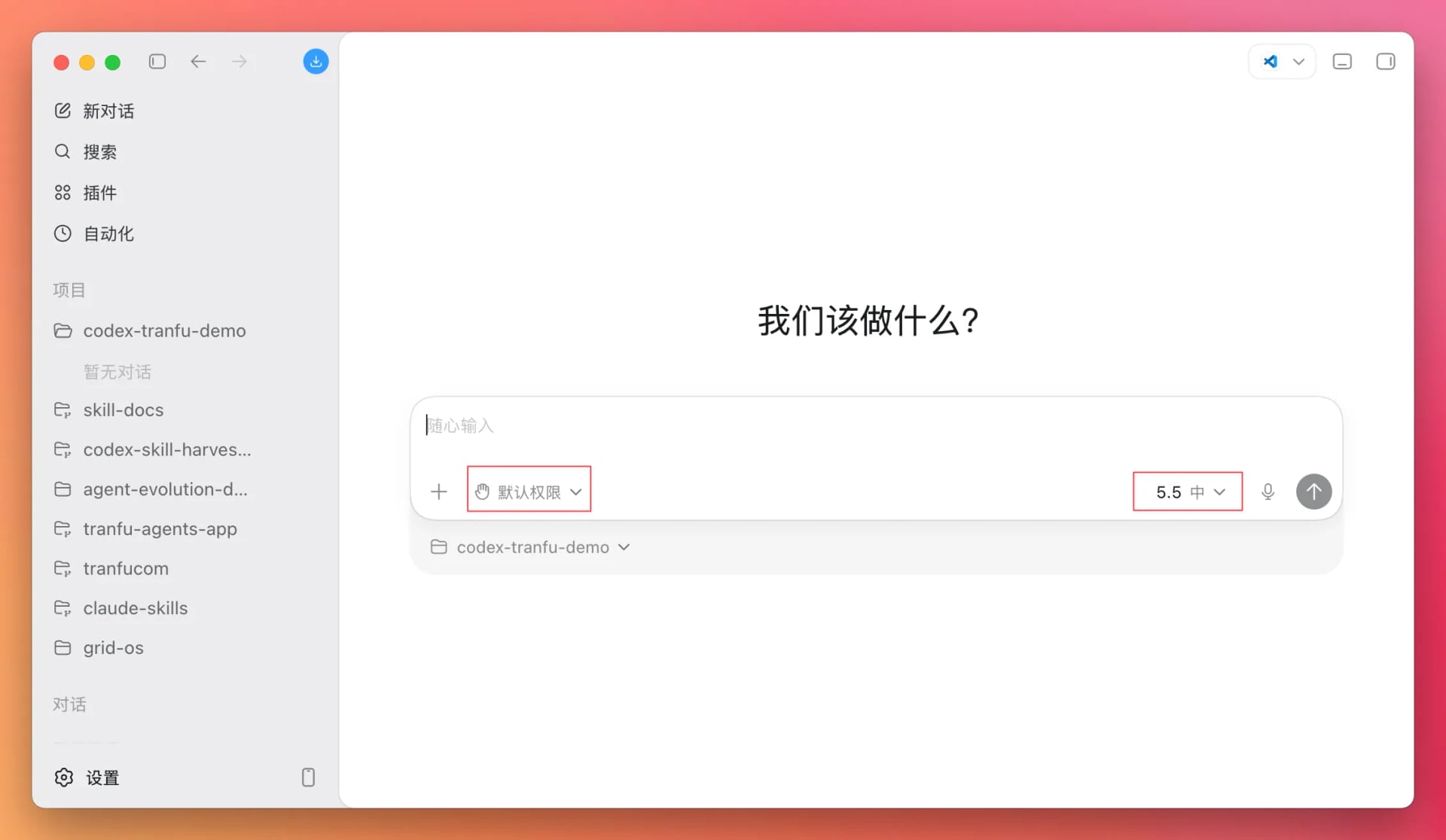
With the default settings, Codex may pause before every action and ask whether it has permission to proceed, and the selected model may not be the strongest one available. To make your first experience smoother, adjust two settings first.
| Setting | Recommendation | Why |
|---|---|---|
| Permissions | Set to Full access | Codex will not need to ask you at every step when it reads and writes files or runs checks in the current folder, so the experience will be much smoother. You opened an isolated, empty folder, so even if Codex is free to act, it can affect only the contents of this practice folder—not your official materials. |
| Model | Select GPT-5.5, set reasoning effort to Extra High, and choose Fast speed | The more steps a task has, the more important the model's reasoning ability becomes. With reasoning effort set to Extra High, Codex is more reliable when breaking down and executing tasks and is less likely to take unnecessary detours. With the $100 Pro plan, for example, it is generally difficult to use up the five-hour allowance unless you run several tasks at once. For your first attempt, feel free to use the best configuration. |
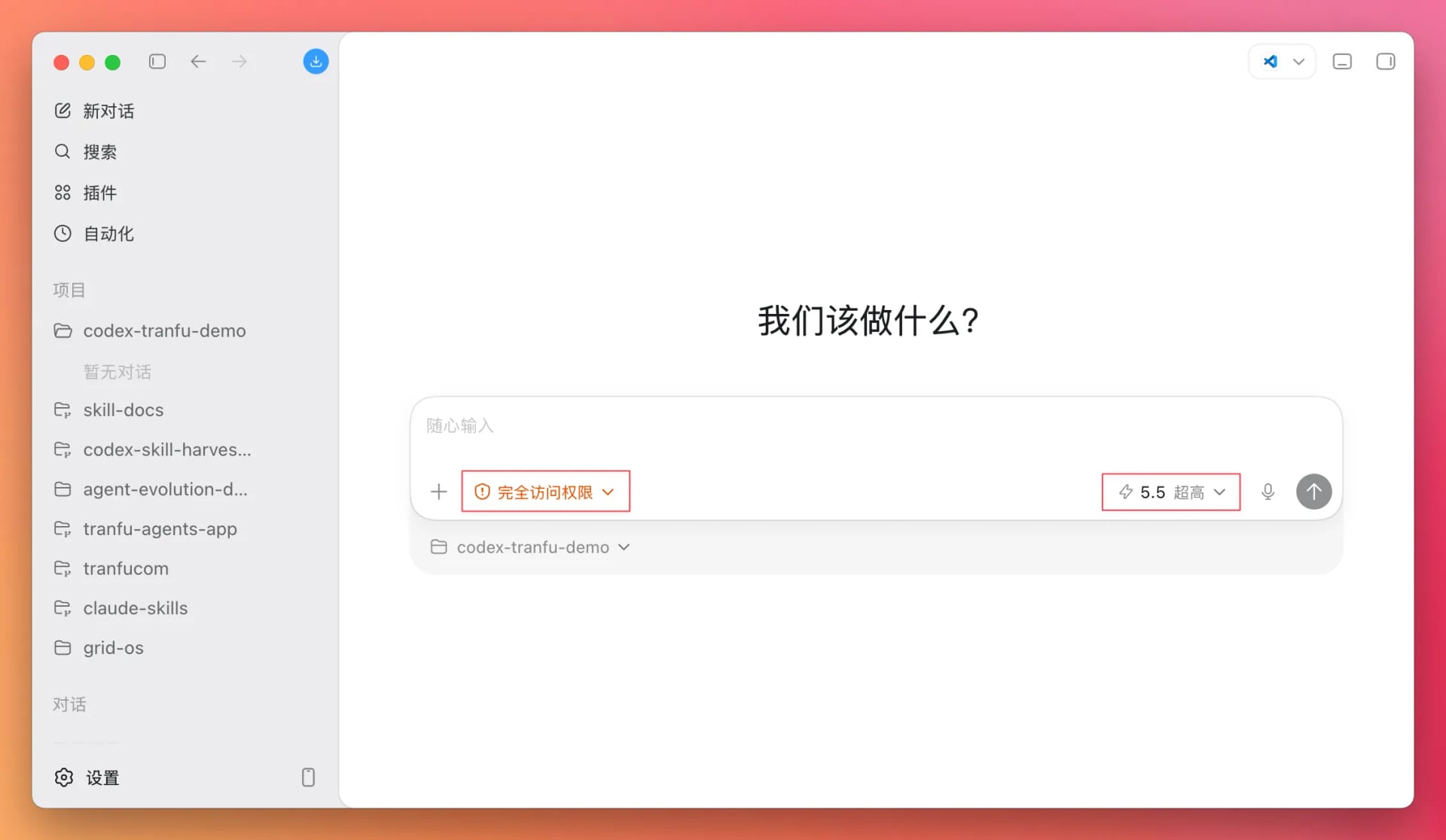
Once these settings are in place, Codex should no longer interrupt you frequently while carrying out the remaining tasks. It will still show you each step, so you can watch it work—and if anything looks wrong, you can stop it at any time.
Step 3: Install the Skill Library—Use Methods Others Have Already Developed
To use Skills effectively, you need a Skill repository that is accurate, frequently useful, and easy to maintain. You do not need to write and collect every Skill yourself. Install an existing library, and you can immediately use methods that other people have already refined. For this walkthrough, we will use the Skill library our company uses in its day-to-day work.
All you need to do is copy the following sentence into Codex:
Please read https://github.com/tranfu-labs/tranfu-skills/blob/main/INSTALL.md and follow the documented steps to install our company's Skill library for me.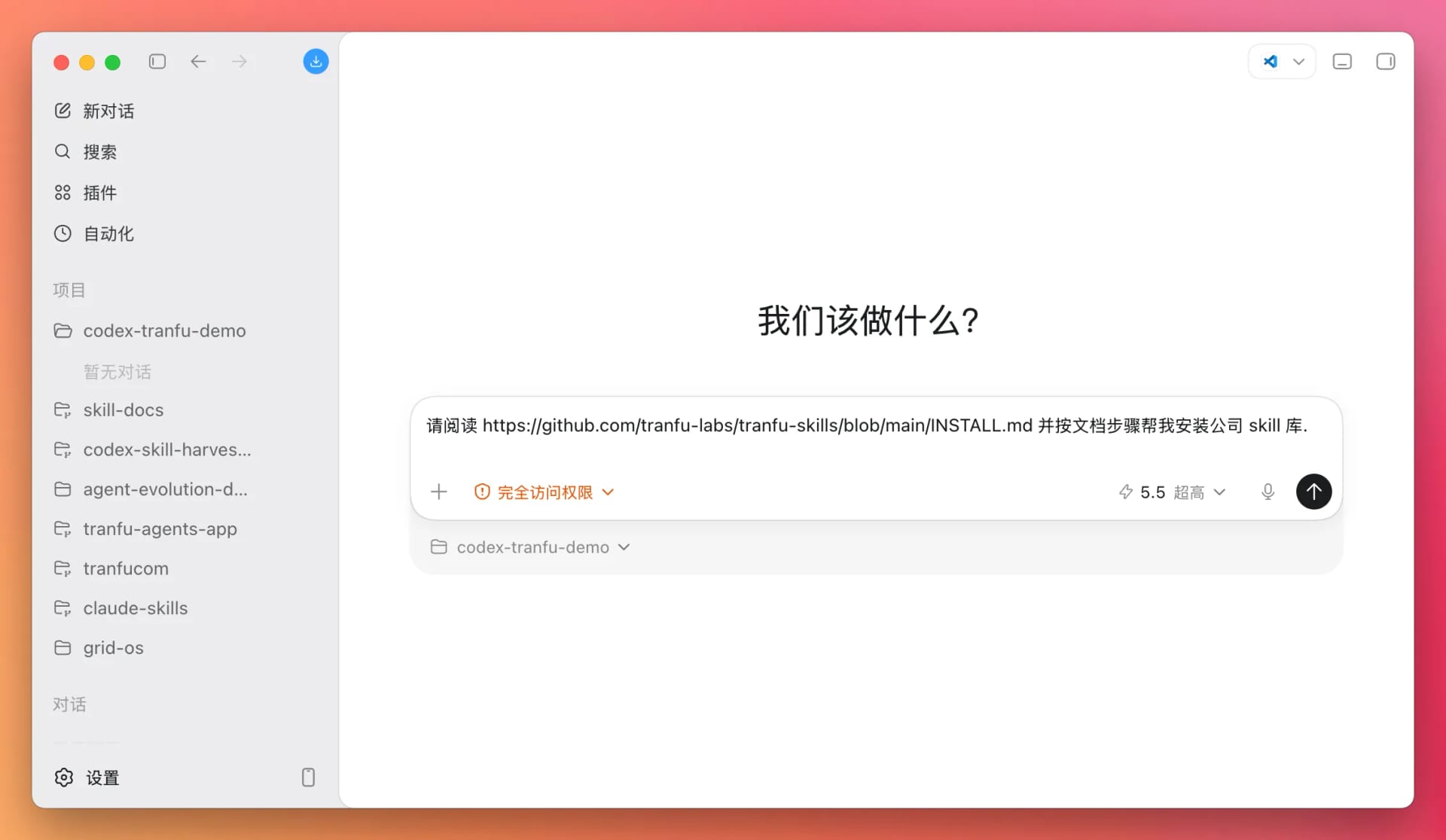
After you send it, Codex will follow the document step by step:
- Inspect the current folder
- Open the installation instructions
- Check whether the library is already installed
- Install it according to the instructions
- Verify the result at the end
Because you have already enabled Full access, Codex will usually complete the entire process without asking for permission again.
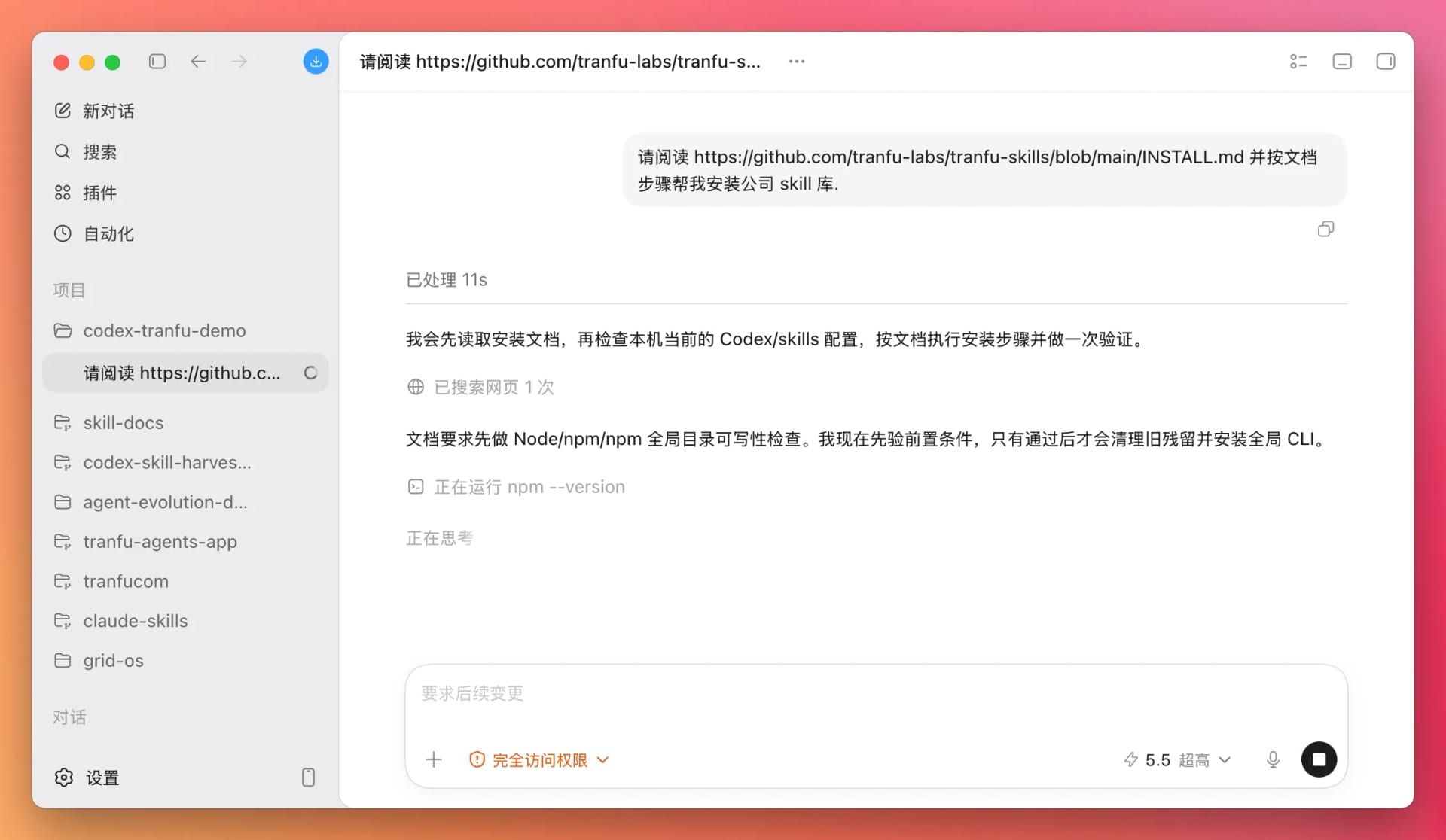
After the installation is complete, the output should look roughly like this—the exact appearance may vary slightly by version.
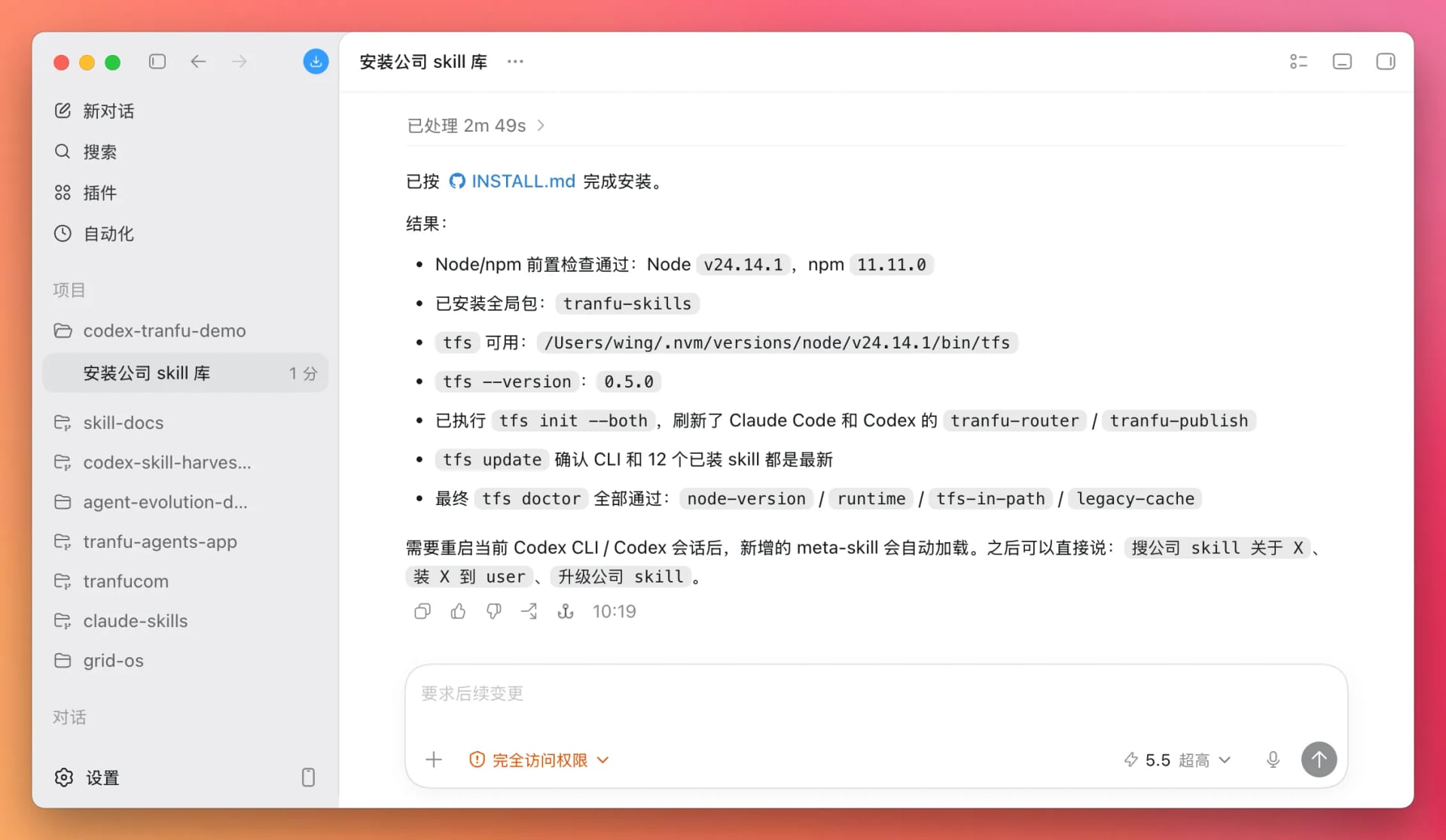
How can you tell whether the installation succeeded? You can verify it like this:
- Start a new conversation. Make sure you click the new-conversation button to the right of the project we just created
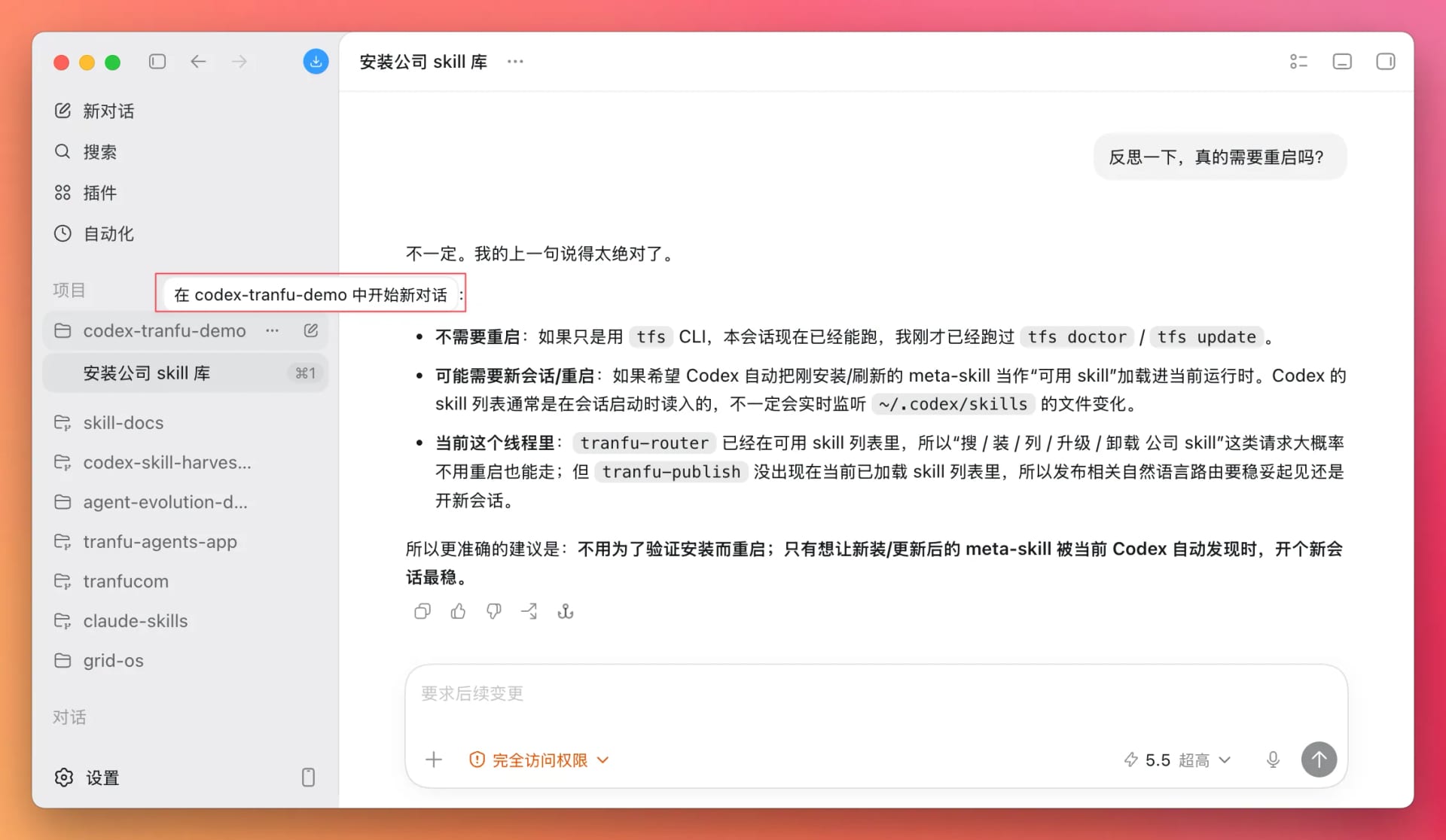
- Then tell Codex:
Show me which Skills are available in the tranfu library.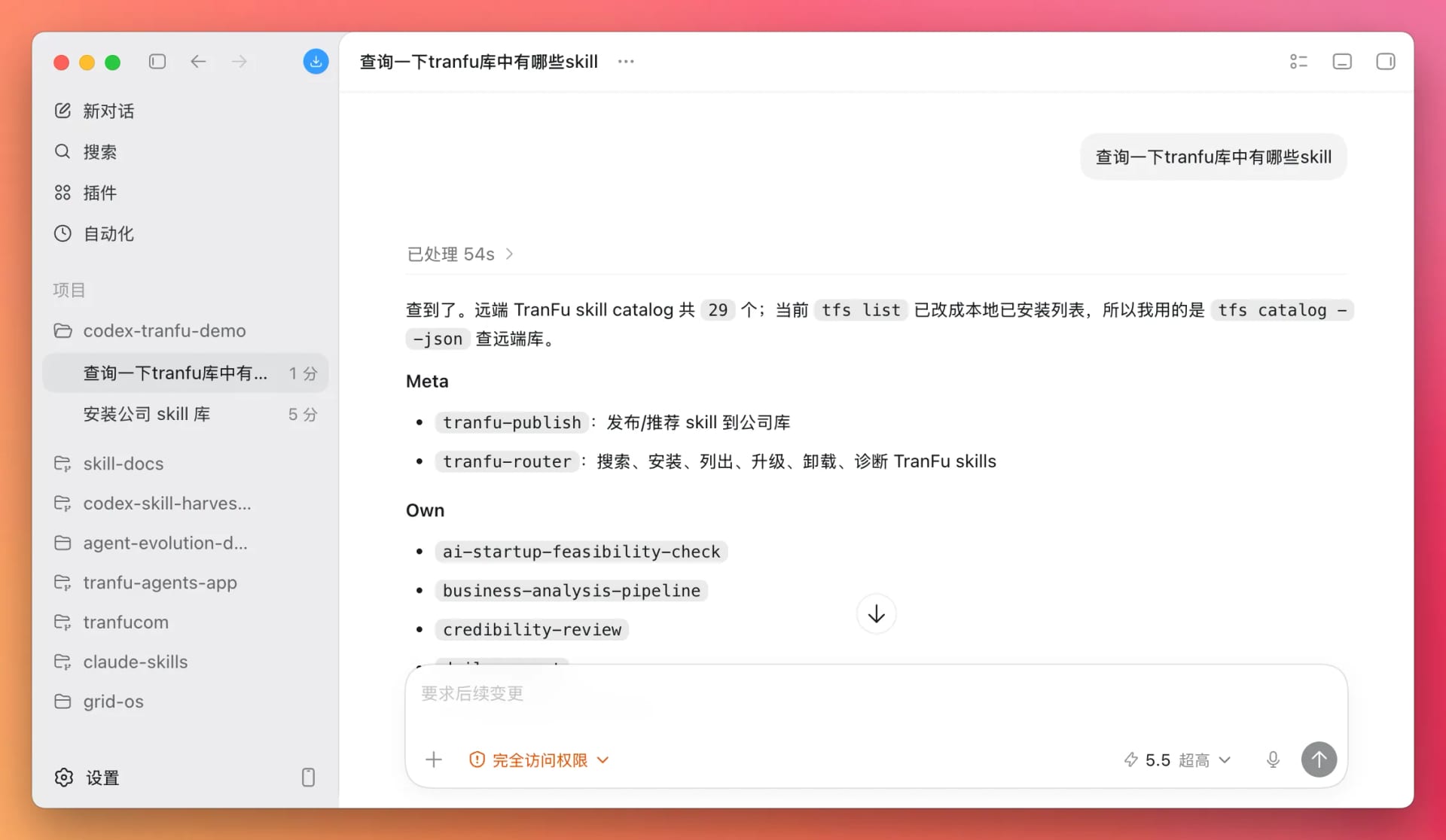
If something goes wrong, Codex will usually also tell you:
- Which step is blocked
- What error occurred
- What it recommends doing next
- A message you can send directly to hello@tranfu.com to ask us for help
Whether it succeeds or reports an error, save a screenshot of the result first.
Step 4: Run a Skill—Review an Article on the Spot
The library is installed, but you have not yet seen it in action. In this step, you will run an existing Skill and watch it work.
First, start a new conversation.
It is best to start a new conversation for each independent task.
We will use the “clickbait content review” Skill as an example. It can help you determine whether an article relies on clickbait tactics, exaggeration, or manipulative framing. First, ask Codex to install it in the current project:
Install the clickbait content review Skill from the Tranfu library in this project.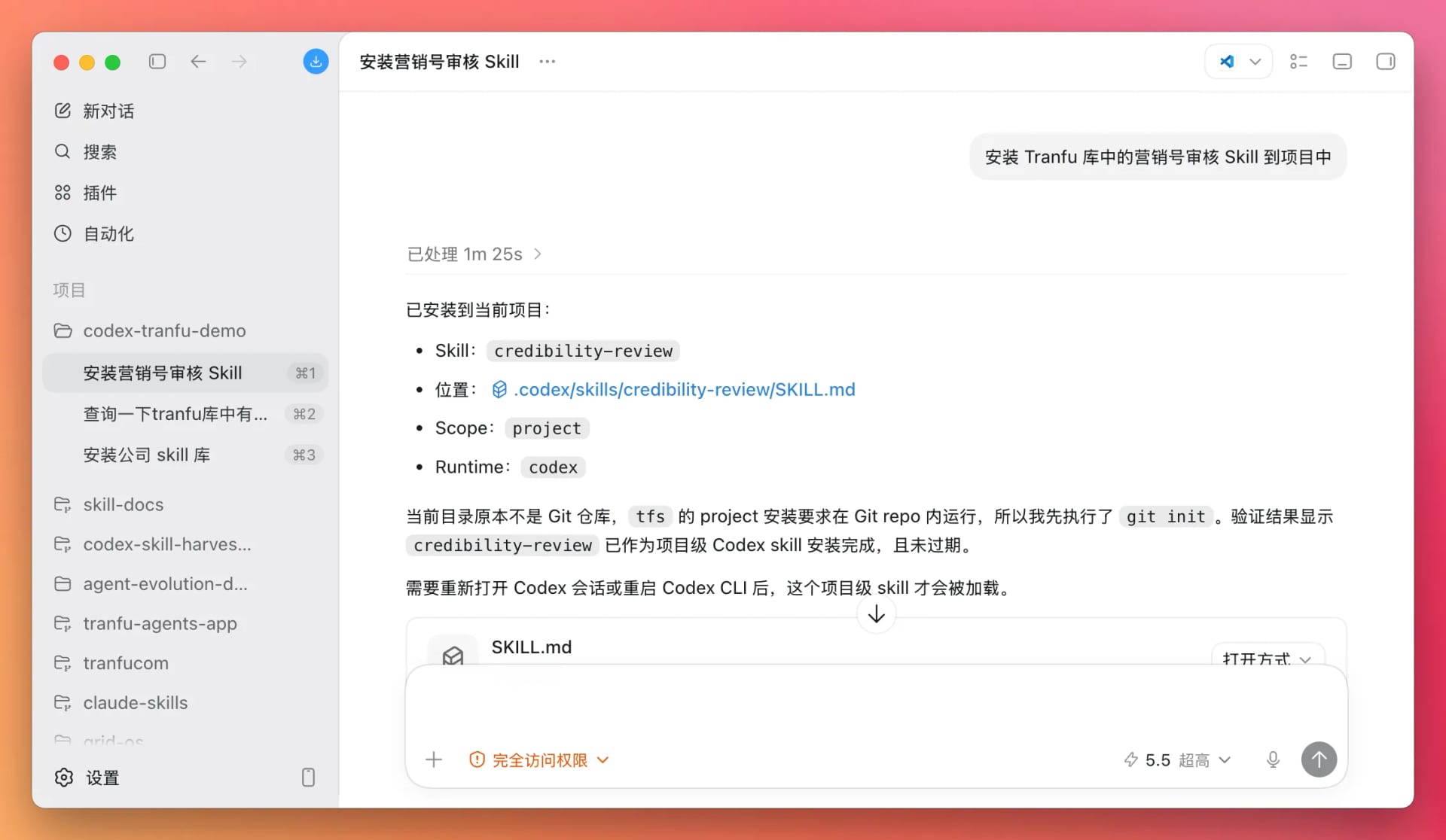
Once it is installed, start another new conversation.
Then find any article link and ask Codex to review it:
Use the clickbait content review Skill to review this article: https://zazencodes.substack.com/p/build-your-own-developer-tools-with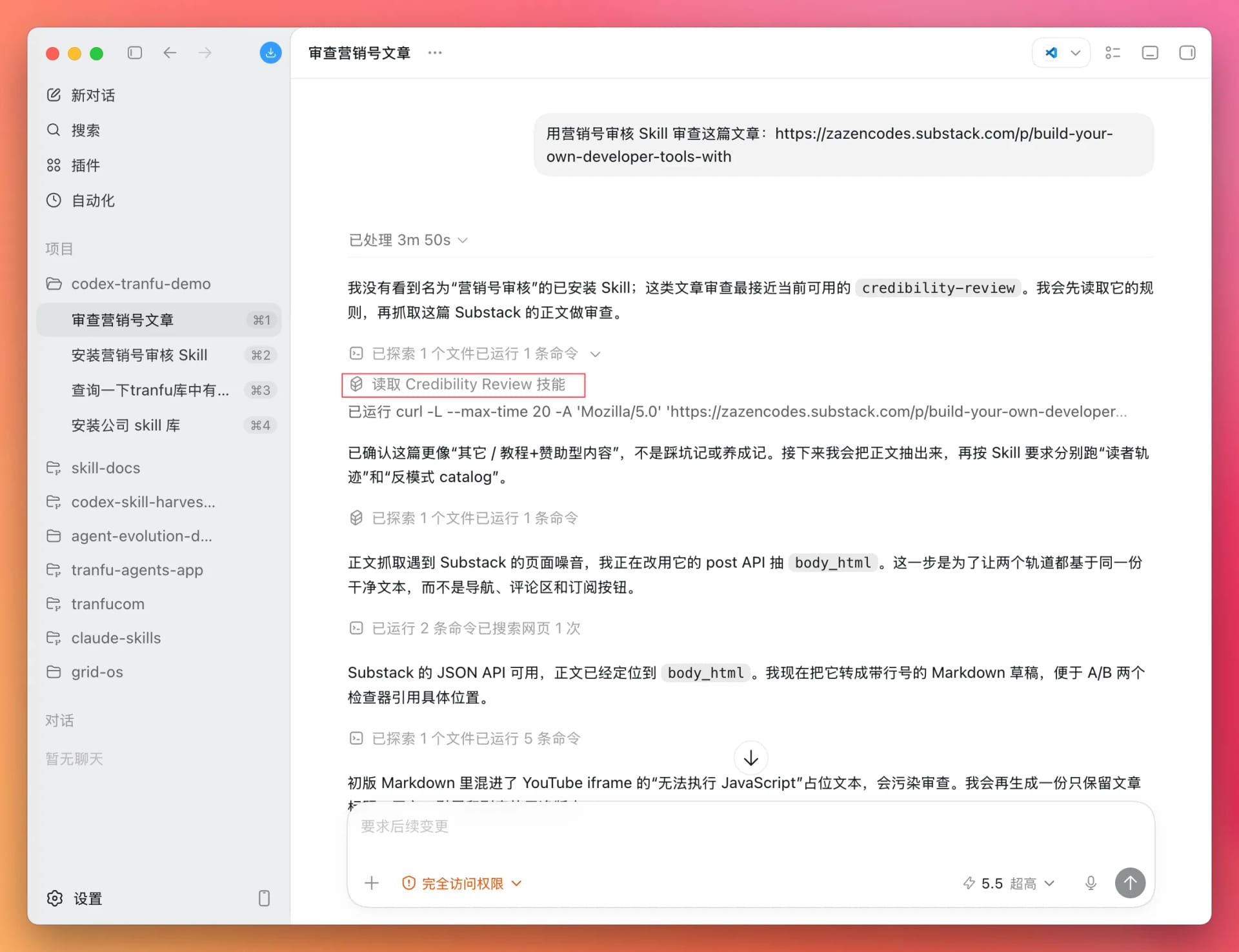
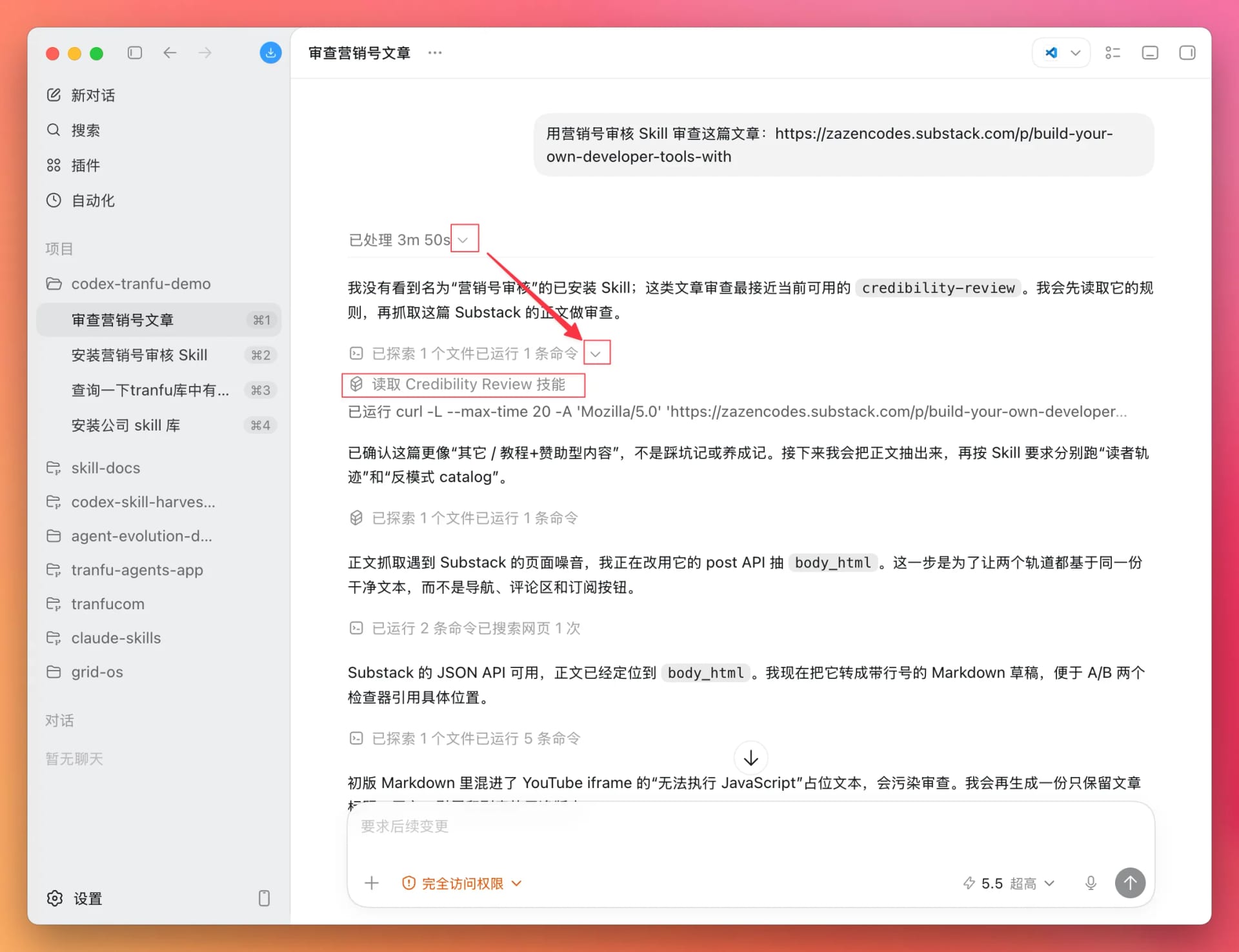
Watch how Codex responds: it will actively invoke the clickbait content review Skill you just installed instead of casually giving you a generic critique. If it names that Skill during the execution process, you know the Skill was activated correctly.
Note: you need to expand the process twice to see it here.
When the process is complete, Codex will provide the review in the format defined by the Skill: which parts resemble clickbait, which claims do not hold up, and how credible the article is overall.
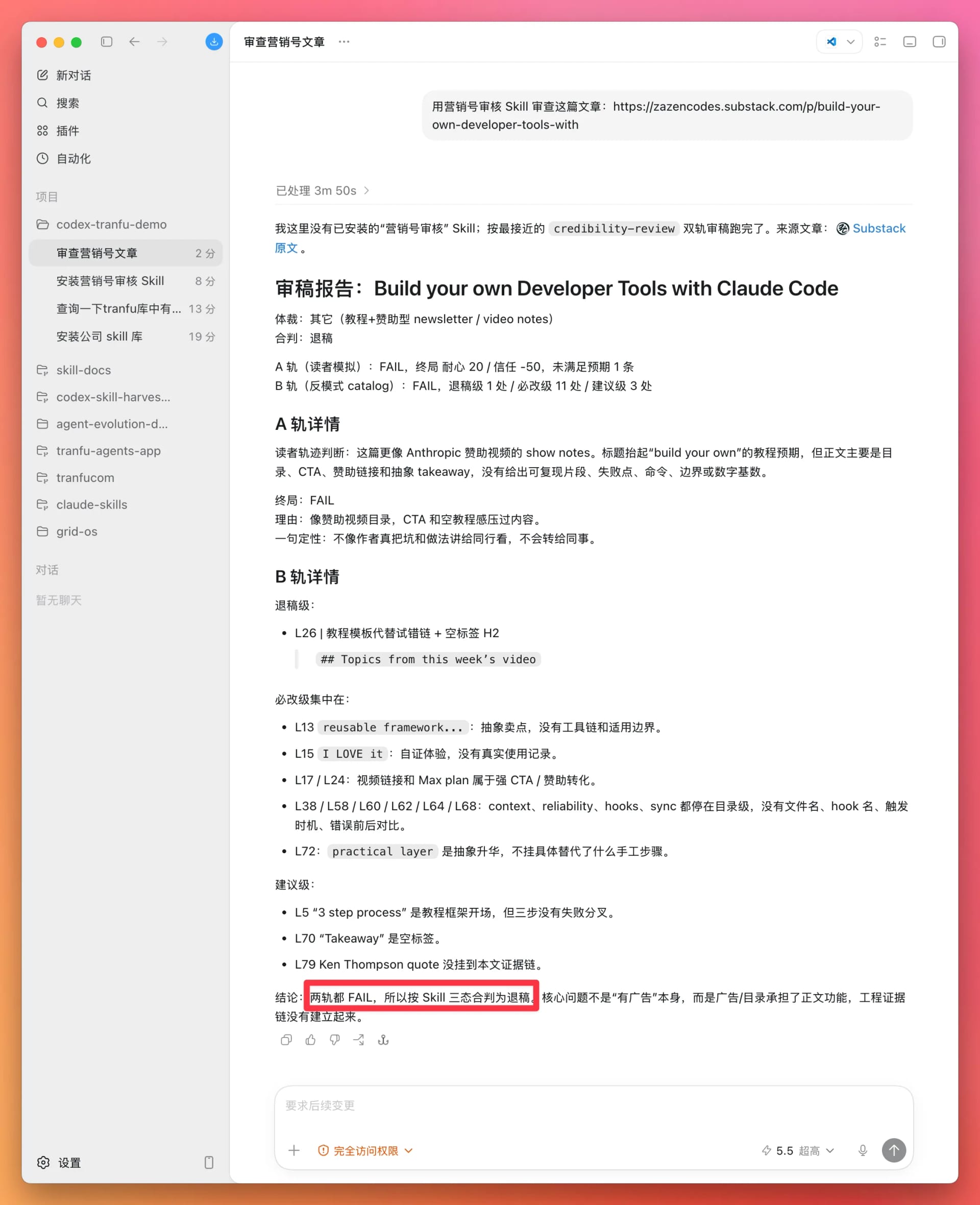
At this point, you have completed the full experience: install the library → install a specific Skill → use that Skill to do a real task for you.
First-Round Completion Criteria
Do not judge your first attempt by asking, “Do I completely understand everything?” The standard is much more concrete—if any one of the following applies, you are done.
| What you see | What it means | What to do next |
|---|---|---|
| Codex says the company Skill library is installed and available | Success | Save a screenshot |
| The clickbait content review Skill is activated and returns a review | Success (bonus) | Save a screenshot |
| Codex reports “partial success” and explains where it is blocked | Stage complete | Save a screenshot and address the issue before the next chapter |
| Codex reports an error but provides a message for requesting help | Stage complete | Send the screenshot and message to a coworker |
| Codex cannot open the folder | Stage complete | Send the screenshot to hello@tranfu.com |
Saving evidence matters more than pursuing perfection. The most useful screenshots are:
- The
codex-tranfu-demofolder open in Codex - Codex beginning to execute the task
- The installation result
- The Skill being activated and the review result, if you got that far
Common Problems
You are most likely to get stuck in one of these situations. They are listed here to reassure you that running into problems on your first attempt is normal.
| Problem | Possible cause | What to do now |
|---|---|---|
| You cannot find the option to open a folder | Your Codex version or interface is different | Take a screenshot and ask a coworker, “How do I open a folder in Codex?” |
| You opened a folder containing important materials | You selected the wrong folder | Exit and select codex-tranfu-demo again |
| You cannot find Full access or the model settings | The location of the settings varies by version | Take a screenshot and ask a coworker, or continue with the default settings for now |
| Codex only explains concepts and does not execute anything | You may not have sent the task from inside a workspace | Confirm that codex-tranfu-demo is the currently open folder |
| Codex never gives a final result | It may be stuck on one of the installation steps | Save a screenshot; the conversation output still counts as a result |
| The tranfu-skills installation fails | A network, permissions, or local-machine issue | Take a screenshot and use the help-request message it provides |
| The clickbait content review Skill is not activated | The library or Skill may not have been installed correctly | Confirm that the library is installed, then resend the instruction to install that Skill |
| It outputs a long list of errors in English | A local configuration or permissions issue | Take a screenshot and use the help-request message it generates |
For your first attempt, you only need to decide one thing:
Should you continue with this step, or should you take a screenshot and ask for help?
Minimum Completion Version
If you only want to try the quickest possible version, these steps are enough:
- Create
codex-tranfu-demoon your desktop and open it with Codex - Configure Full access and the model
- Copy the installation instruction and let Codex install the company Skill library
- Save a screenshot of the final result
You can stop once you have any one of these screenshots:
- A screenshot of the empty folder open in Codex
- A screenshot of Codex executing the task
- A screenshot of the installation result
- A clear screenshot of an error
An error still counts—because you have moved from “I don't know where to start” to “I know exactly where I got stuck.”
If You Have Another 10 Minutes
Try one more Skill while you are here:
- Ask Codex to search the library with a few different keywords:
writing,retrospective, orreview - Pick one that looks useful and ask Codex to install it in the project
- Run it once, just as you ran the clickbait content review Skill above
You do not need to decide which Skill is best. Simply save a screenshot of the name of a Skill you found or the result of one execution.
In the next chapter, you will use an existing Skill to review a task description that you wrote for AI.
What Remains After You Close Codex?
You may be wondering whether everything you installed and discussed today will disappear when you close Codex.
Just remember one sentence:
Conversations are forgotten; installations remain.
- This conversation will be forgotten: if you exit Codex and open it again, you will begin with a completely new conversation. It will not remember what you discussed before. That is normal—it works the same way as ChatGPT.
- Installed Skills will not be forgotten: they remain in the
codex-tranfu-demofolder. Open Codex tomorrow, select the same folder, and they will still be there.
So if you want to continue tomorrow, you do not need to reinstall anything or explain it all again. Open the folder and say, “Use the clickbait content review Skill to review this article.” Codex does not need to remember—you only need the Skill to be available in that folder.
Think of a Skill as an SOP posted at a workstation. The intern who came in today leaves at the end of the day—the conversation closes. A new intern arrives tomorrow—a new conversation begins. But the SOP is still on the wall, so the new person can follow it just the same.
Here is another principle worth remembering because you will use it again and again:
If you want something to remain, save it to a file. Anything that exists only in the conversation disappears when you close it.
That is also why this chapter keeps asking you to save screenshots. The same applies to review results: if you want to keep one, take a screenshot or ask Codex to write it into the folder.
What You Have Accomplished
The key to this chapter is not the terminology or any complicated tool. It is a crucial shift:
- From “I ask AI a question” to “I ask Codex to execute a task.”
- From “I explain everything again each time” to “I start using reusable working methods.”
- From “AI only gives me an answer” to “AI can leave a verifiable result in a folder.”
This is the first step in the Skill series: get it moving once. Only then does it make sense to learn how to use Skills written by others effectively, decide whether your own experience is suitable for turning into a Skill, write your own Skill, and eventually publish it for your coworkers to use.