
You may think the hardest part of writing your first Skill is learning how to write a SKILL.md file.
It is not.
SKILL.md may look like a technical file, but that is the part you need to worry about least. Codex already knows how to handle the format, fields, directory structure, and layout. The real challenge is turning the "this is just how I do it" method in your head into a set of rules that someone else can follow.
First, let us clear up a misconception: being able to make a judgment yourself does not mean Codex can reuse that judgment.
For example, you can usually tell at a glance where an article feels vague, which action item is missing from a set of meeting minutes, or why a prompt has gone off track. But when you write a Skill, you cannot record only the conclusion. You also need to spell out the basis for the judgment: which signals you look for, what missing information should be flagged for confirmation, and when Codex must stop and ask.
So do not write rules like this:
Help me organize this more clearly.
That instruction is too vague. Codex will apply its general understanding and give you something neatly formatted and politely worded. But it still will not know which decisions must be preserved, which points should be placed in a pending-confirmation section, or which phrasing does not fit the way you work.
This chapter solves just one problem: putting those judgment criteria into a Skill file in the current project. The goal is not to have Codex generate a draft in chat, but to add a real SKILL.md file to the project so you can invoke it again next time.
Follow these five steps:
- Set the right scope.
- Let Codex interview you.
- Have Codex create the file in the current project.
- Review it immediately with
prompt-review. - Test it on real material.
Do not skip any steps. If the scope is wrong at the start, the rest will become unfocused. Without testing on real material, a Skill may look usable but still go off track in practice.
Step 1: Set the Right Scope
There are two common ways a Skill can fail.
The first is being too narrow. You call it "Organize Lark Meeting Chat Logs," and the next time someone gives you a transcript from a meeting recording, Codex does not realize the Skill applies.
The second is being too broad. You call it "Organize Information," so meeting minutes, reading notes, sales leads, and weekly reviews all get thrown into it. At that point, it is no longer a Skill; it is a catch-all.
You want something in between:
| Topic | Assessment |
|---|---|
| Organize Lark meeting chat logs | Too narrow |
| Organize information | Too broad |
| Organize meeting records | Usable |
Start by writing three sentences:
- This Skill handles:
[what the input is] - It produces:
[what the result looks like] - It does not handle:
[where the boundary lies]
For example:
- This Skill handles: meeting-recording transcripts, meeting chat logs, and scattered meeting notes
- It produces: structured meeting minutes
- It does not handle: polishing opinions expressed in meetings, making strategic judgments, or making decisions on someone else's behalf
These three sentences mark out the Skill's territory. If that territory is too small, the Skill cannot travel; if it is too large, the Skill starts wandering everywhere.
The test is simple:
- Would the Skill still apply to another input of the same kind?
- If yes, keep the scope.
- If no, the scope is too narrow.
- If it applies to every kind of input, the scope is too broad.
If you get stuck, do not struggle with it alone. Hand this step directly to skill-domain-framing.
Install skill-domain-framing
Install the skill-domain-framing Skill from the Tranfu library into this project.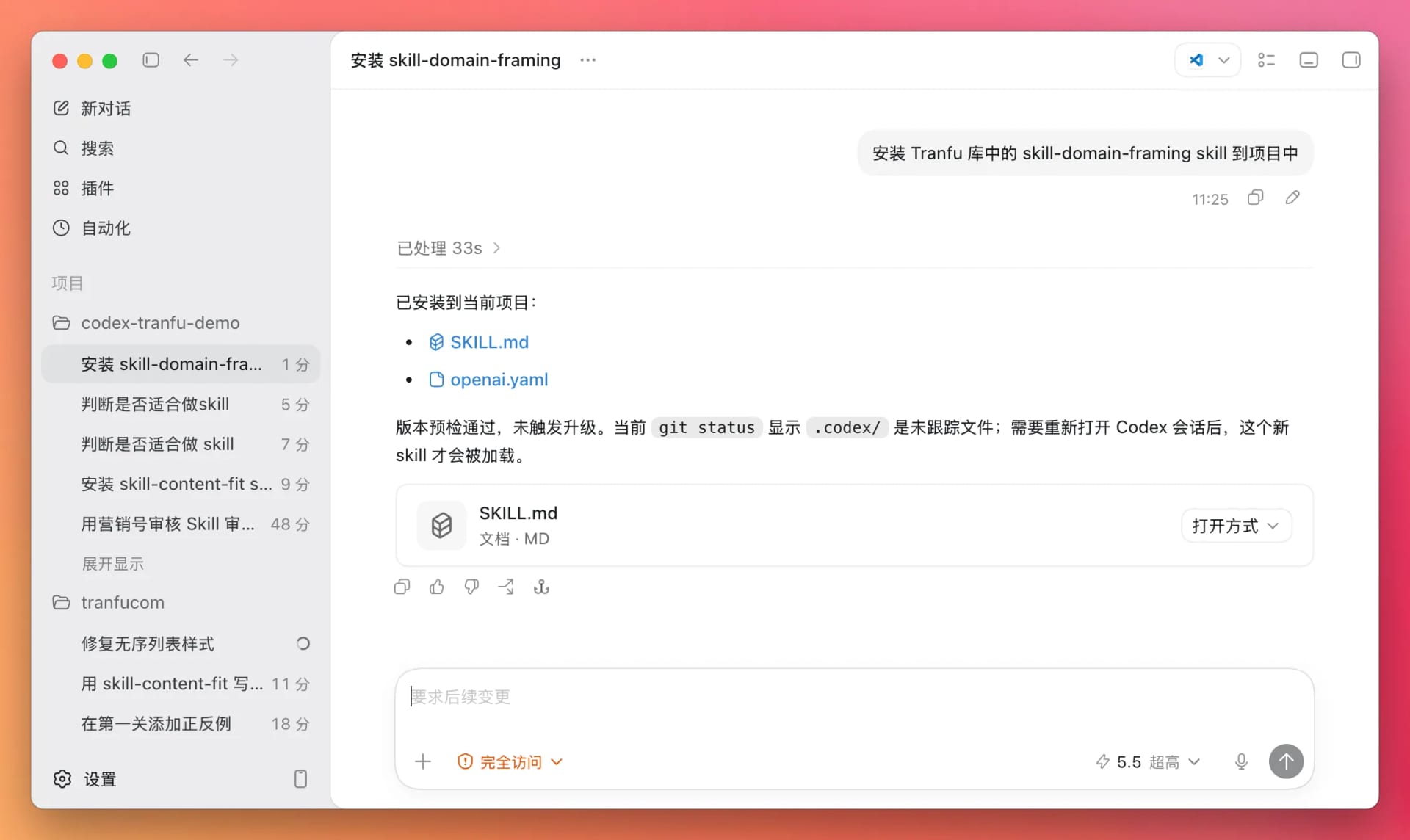
Using the earlier meeting-minutes example again, you only need to say:
Create a Skill
---
For any meeting involving multiple collaborators, the minutes must be organized into action items within 24 hours after the meeting. Every action item must include an owner, a deadline, a deliverable, and an approver. Items without an owner or deadline must not be added to the to-do list. Whenever Xiao Wang is mentioned, merge the relevant items into his work plan, which is usually located at week-jobs/xiaowang.md in the project directory.
The AI will then load the appropriate Skill.
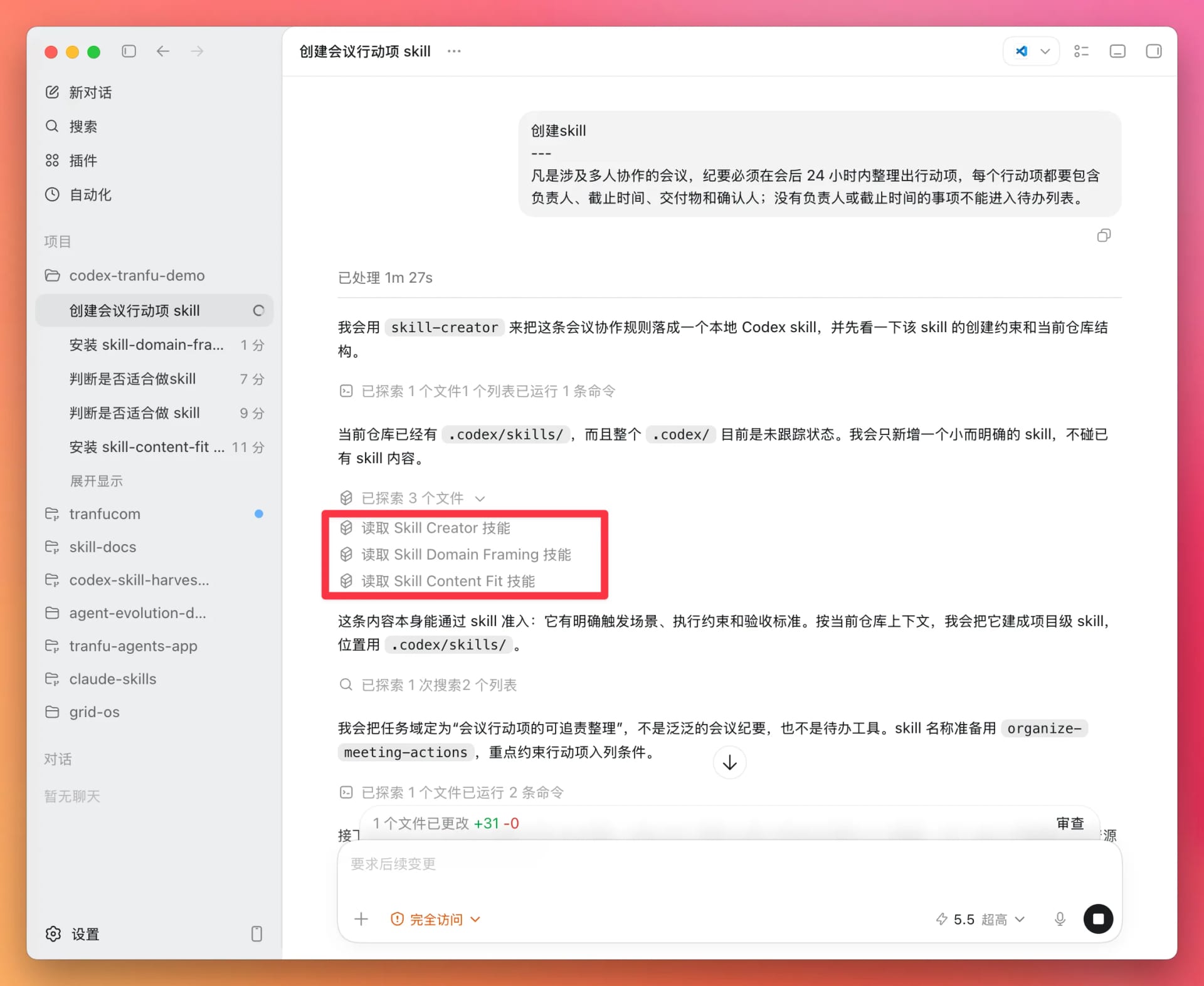
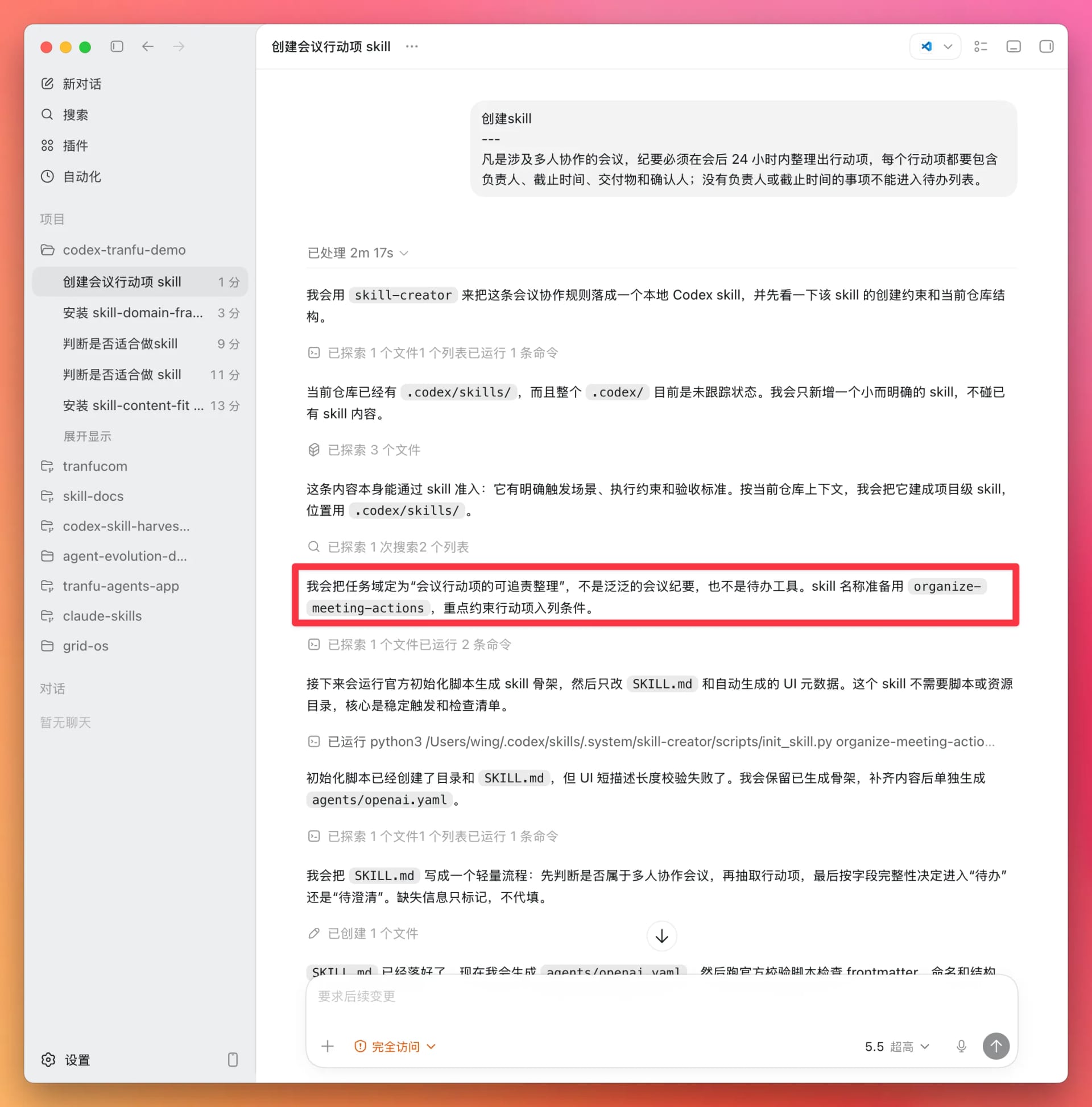
You will see that it automatically identifies an appropriate domain in which to define your Skill.
Step 2: Let Codex Interview You
AI has a tendency to act too quickly and think too little. In the previous step, it ran through the entire workflow and generated a Skill immediately, even though many details were still unclear.
When that happens, tell the AI:
Based on my original description, ask me questions to help clarify every ambiguous point. For each question, propose several possible options, identify the best one, and prefix that option with "(Recommended)."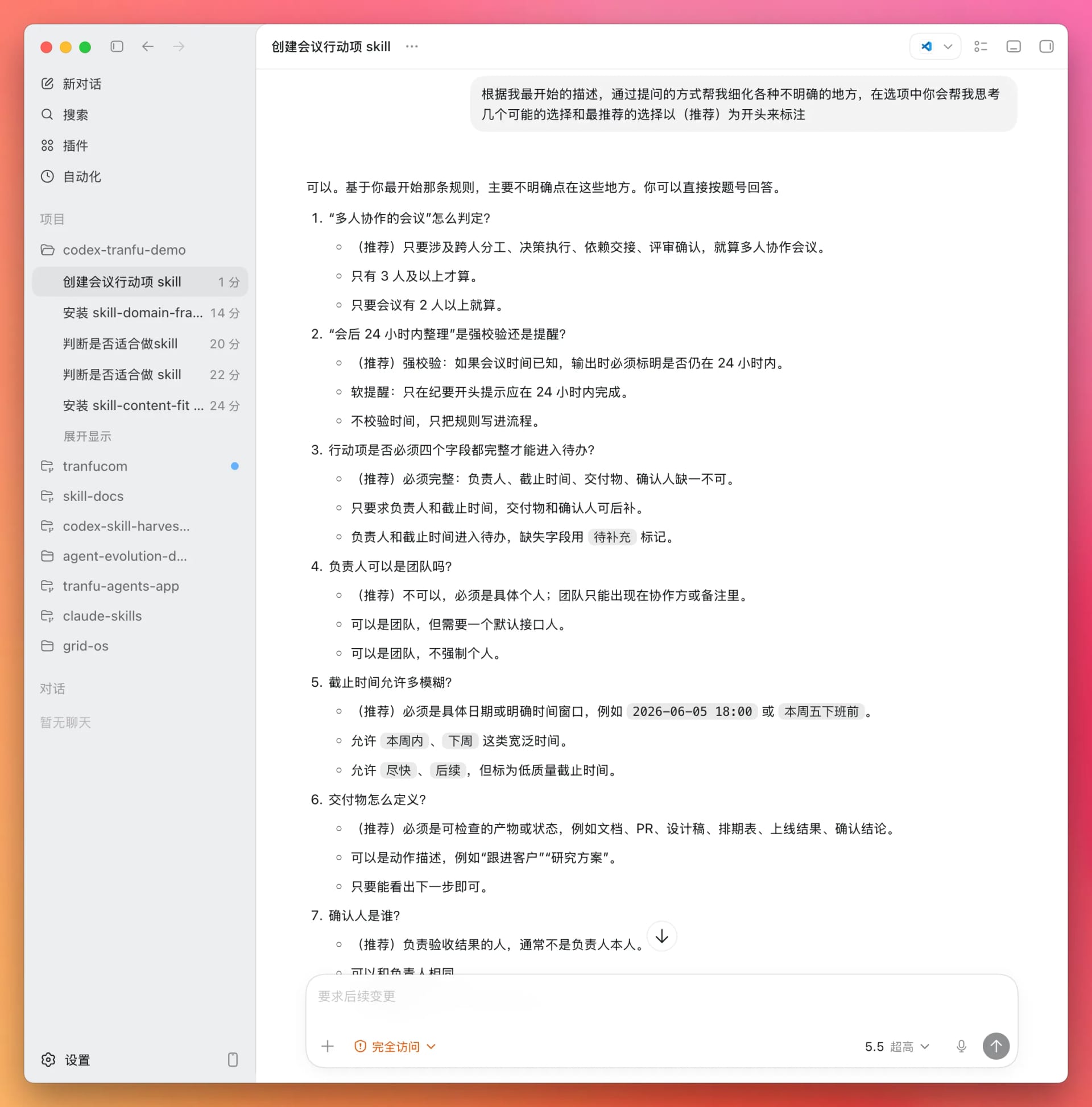
Work through the details with the AI and refine each part of the workflow. The more closely the result matches your real-world situation, the more useful the Skill will be.
Step 3: Confirm Where the Skill Was Created
You may have noticed that we created the Skill without ever specifying where it should go. So where did it end up?
Tell me where this Skill is located and give me its path.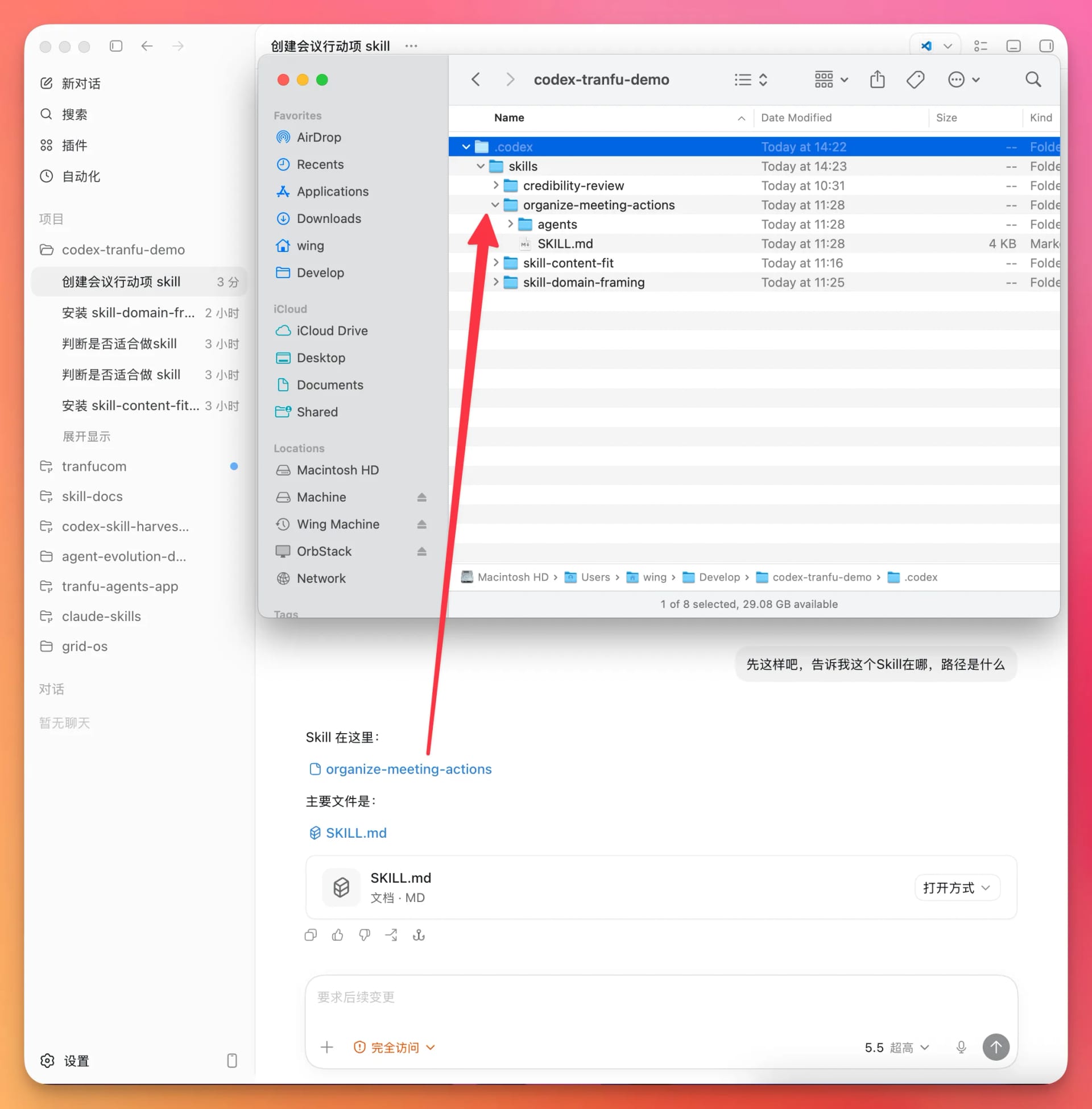
The path is .codex/skills/organize-meeting-actions inside the project folder.
Step 4: Review It Immediately with prompt-review
We now have an initial version, written from our own perspective to capture the workflow and its constraints as faithfully as possible. But that creates a problem.
When the AI reads the Skill later, it may not follow it exactly as intended. We therefore need to refine some of the wording and improve the structure of the document as a whole.
We can use prompt-review from the Tranfu library to handle this step directly.
Use the prompt-review Skill from the Tranfu Skill library to review it.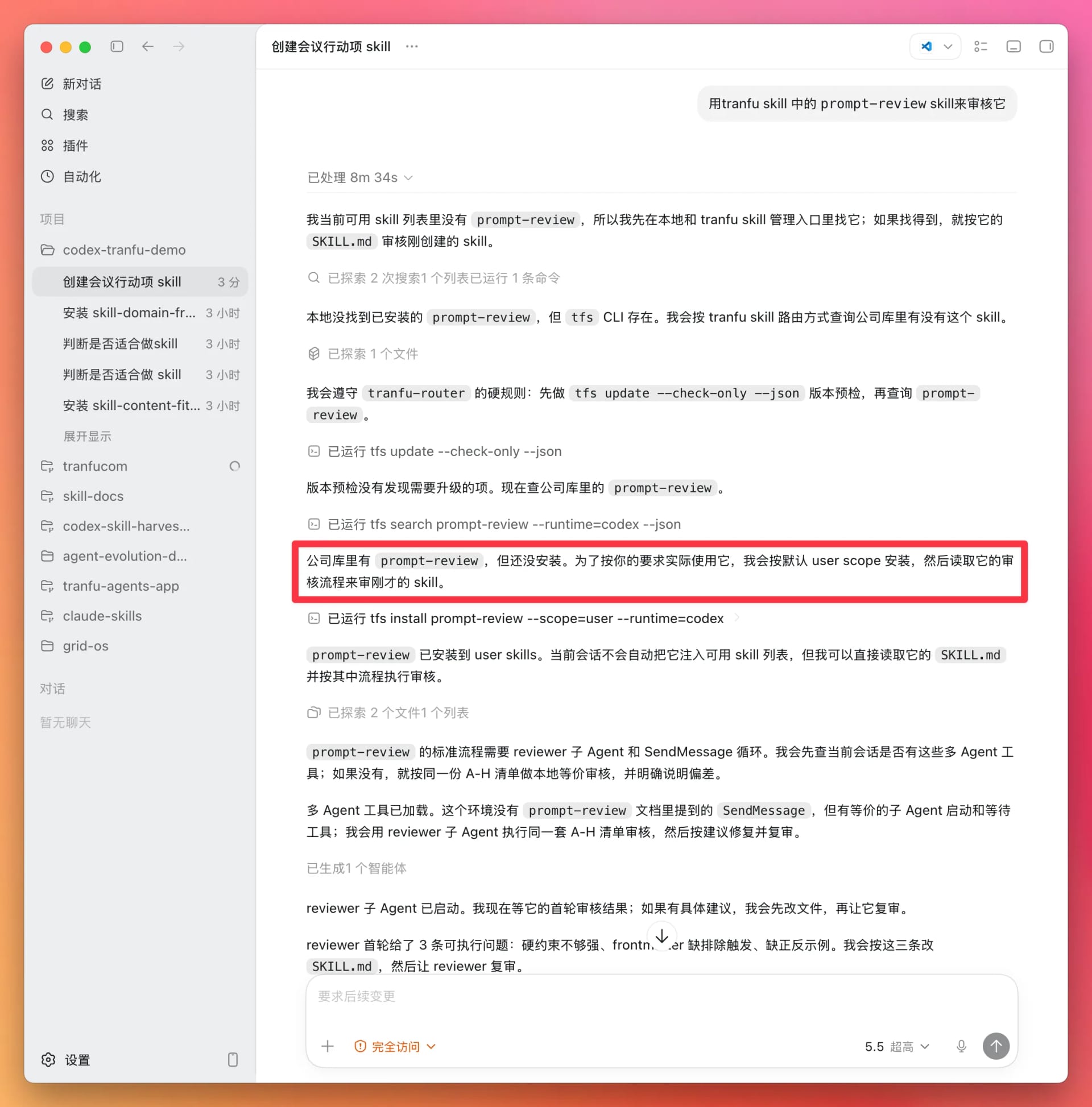
It does not matter if this Skill is not installed yet. The AI will install it automatically. The result looks like this:
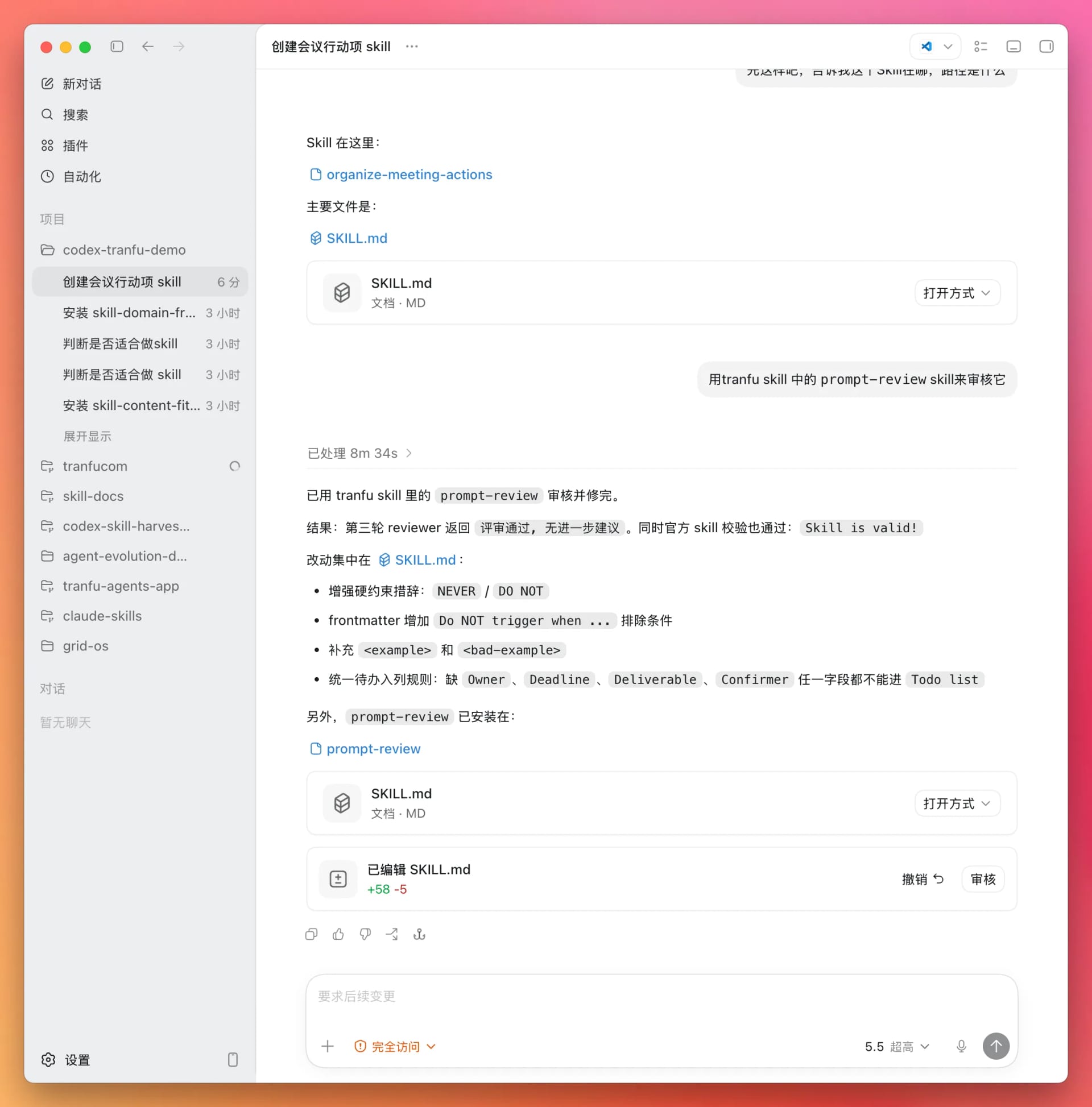
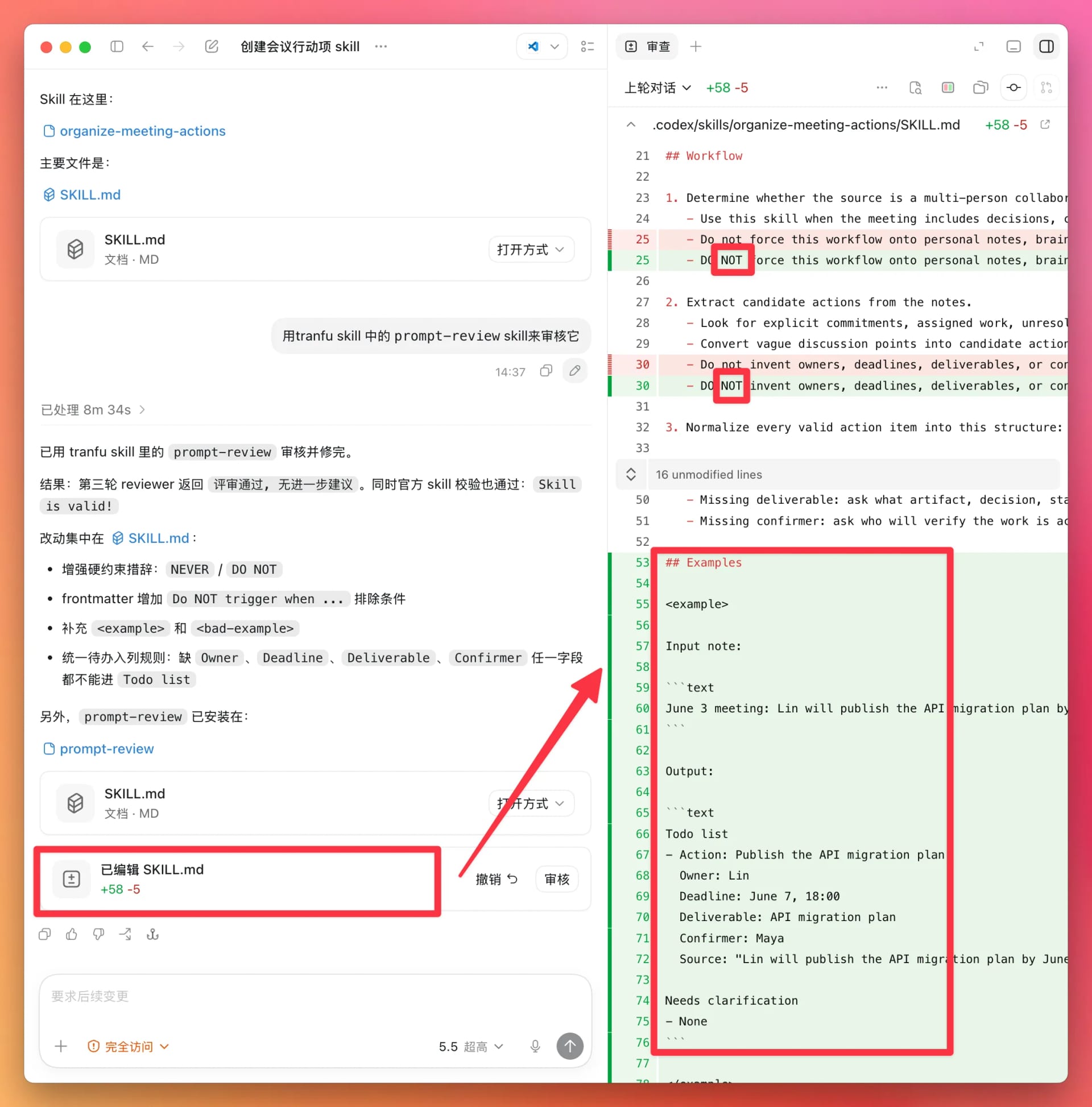
Click Edited Skill to inspect the specific changes. In general, you will see two kinds of edits:
- Some important words are capitalized. Keywords such as
NOTcarry more weight for a large language model when capitalized, making the instruction more likely to be followed. - Positive and negative examples are added. When you give an AI an abstract rule, its interpretation may differ significantly from what you intended. Concrete examples and counterexamples help align those interpretations.
Step 5: Test It on Real Material
At this point, the Skill has been written and refined. Now it is time to test it.
Let us revisit the goal of our Skill:
For any meeting involving multiple collaborators, the minutes must be organized into action items within 24 hours after the meeting. Every action item must include an owner, a deadline, a deliverable, and an approver. Items without an owner or deadline must not be added to the to-do list. Whenever Xiao Wang is mentioned, merge the relevant items into his work plan, which is usually located at
week-jobs/xiaowang.mdin the project directory.
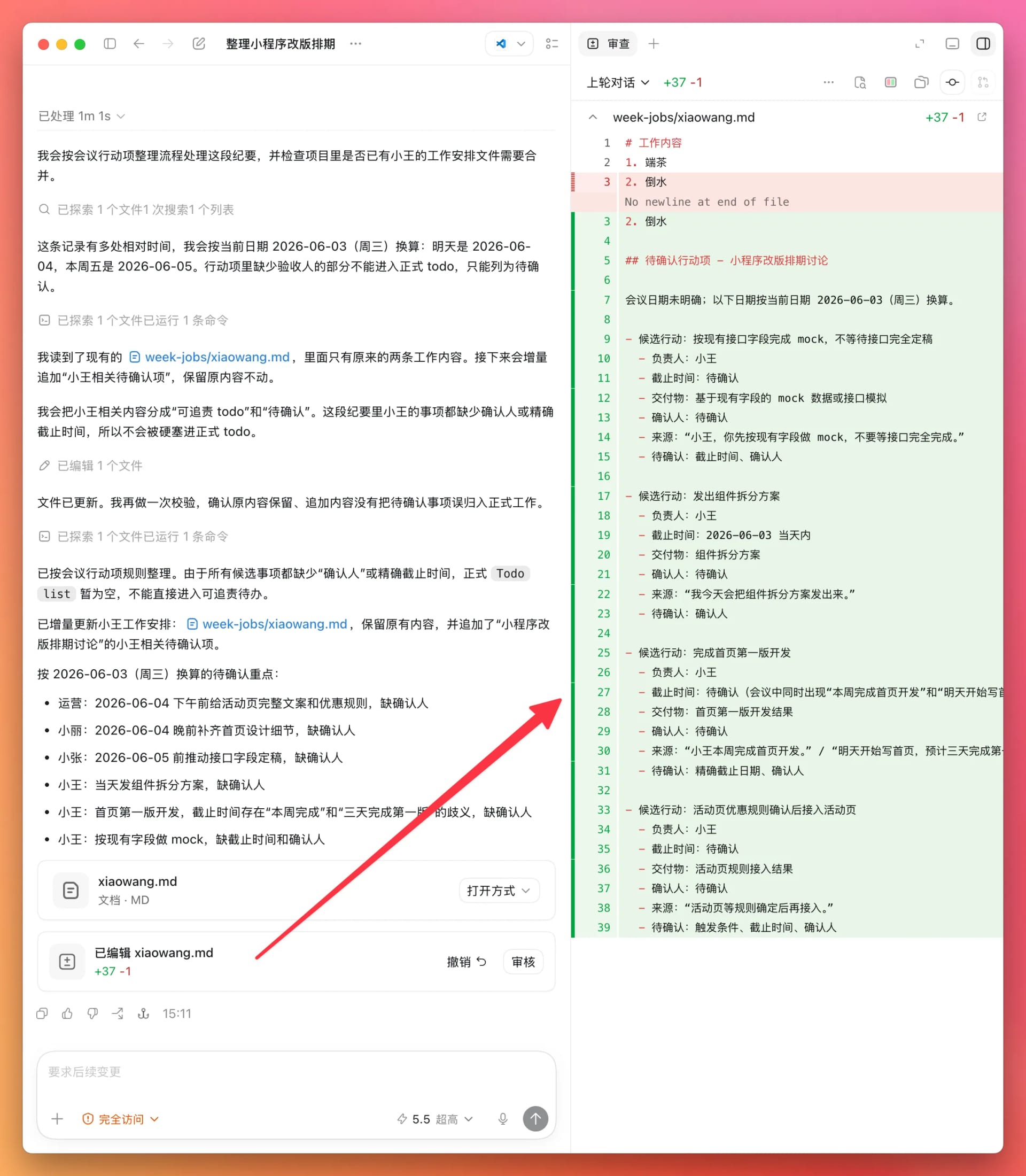
When we provide a new set of meeting minutes, the AI should identify the items involving Xiao Wang and add his assigned work to week-jobs/xiaowang.md.
Here is our test case:
Meeting Example: Mini Program Redesign Schedule Discussion

Xiao Zhang: Today we mainly need to confirm the schedule for the mini program redesign. The home page, campaign page, and analytics tracking all need to move forward in parallel. Let us start with a progress update.

Xiao Li: The designs are 70% complete. The home-page structure is settled, but the promotion rules for the campaign page have not been finalized. I need the operations team to provide the complete copy and rules by tomorrow afternoon.

Xiao Wang: The development team can start with the home page and shared components, then integrate the campaign page once the rules are finalized. The main risk right now is that the API fields are unstable. If the backend team cannot finalize them by this Friday, integration testing next week will be affected.

Xiao Zhang: I will coordinate with the backend team. Xiao Wang, create mocks based on the current fields first; do not wait for the API to be completely finished.

Xiao Wang: All right. I will share the component breakdown today and start building the home page tomorrow. I expect to finish the first version in three days.

Xiao Li: I will complete the remaining home-page details tonight, including the empty, loading, and error states, so the development team will not have to keep asking for clarification.

Xiao Zhang: Good. So the decision is: Xiao Li will deliver the complete design details by tomorrow night, Xiao Wang will finish the home-page implementation this week, and I will push for the API fields to be finalized. We will hold a short meeting on Friday afternoon to review blockers only, without reopening the solution discussion.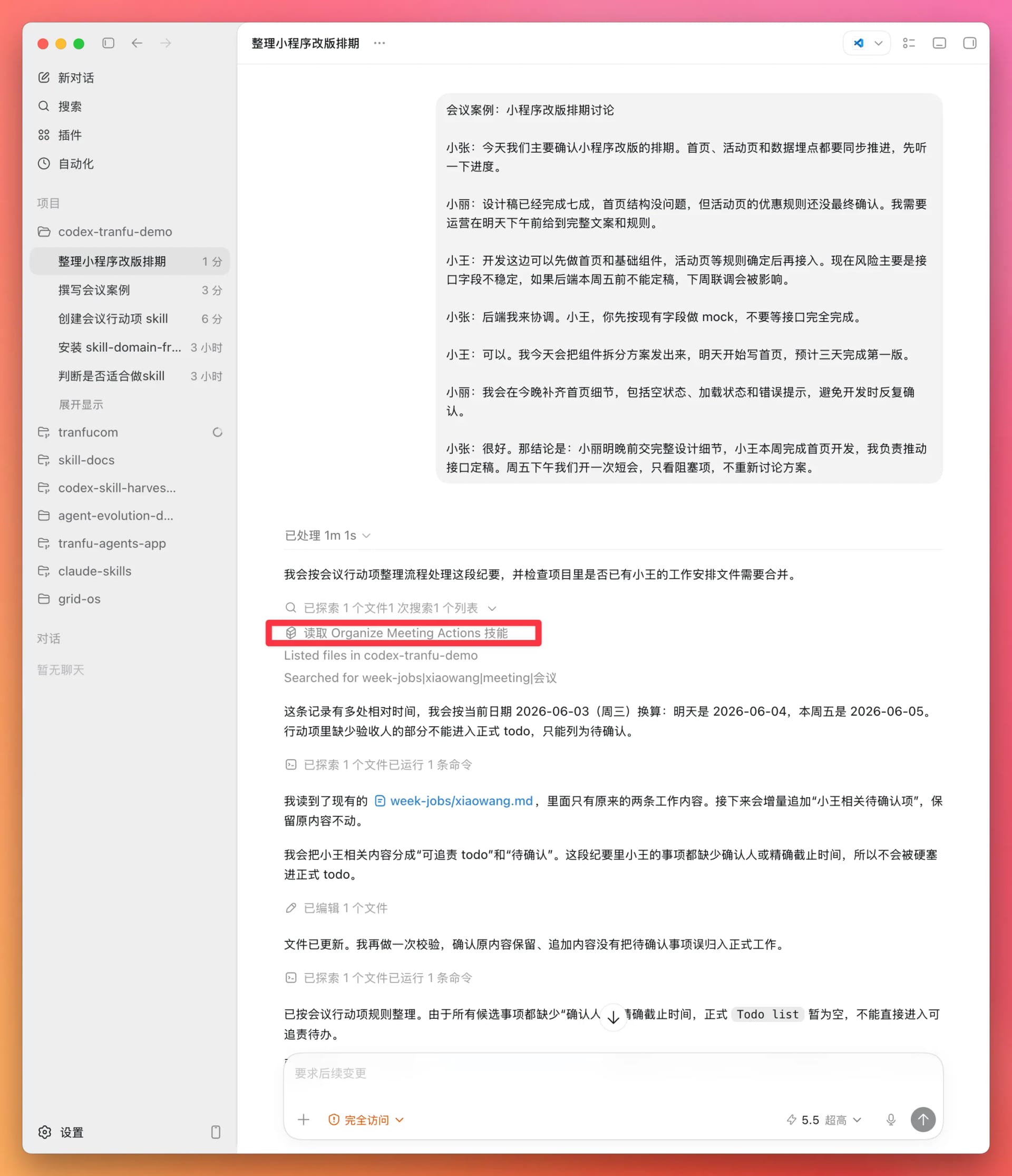
You can see that the AI loaded our Skill and updated xiaowang.md correctly. Click the file to inspect the details.
What Have You Actually Accomplished?
You have not merely learned how to write a file.
You have moved a working method that used to require a fresh explanation every time into the current project.
Before, you had to repeat instructions like these:
- Format these meeting minutes the way we normally do.
- Do not invent an owner for an item that does not have one.
- Do not present unresolved points as final decisions.
- If anything is uncertain, ask me first.
Now those instructions live in SKILL.md. The next time you work in the same project, Codex will not need you to explain everything again from the beginning.
That is the biggest difference between a Skill and an ordinary prompt.
A prompt is like a one-off instruction: once it is given, it is gone.
A Skill is like a rule posted on the project wall. The conversation may change and the task may change, but as long as the project remains, the rule remains with it.
Finally, remember this sequence:
- Use
skill-domain-framingto set the right scope. - Let Codex interview you.
- Have Codex create the file in the current project.
- Refine it immediately with
prompt-review. - Run it twice on real material.
Writing a Skill is not about making your words sound better.
It is about expressing the method clearly enough that you will not have to repeat it next time.