When preparing a project weekly report, you may first copy documents into AI, then add the discussion from chat. After the draft is ready, you still have to paste it back into the team document and send it to the group.
The same materials are moved again and again each time you ask AI to read them.
AI may have finished writing, but the work has not been delivered yet. The friction sits in the repeated handoffs between your tools and the AI conversation.
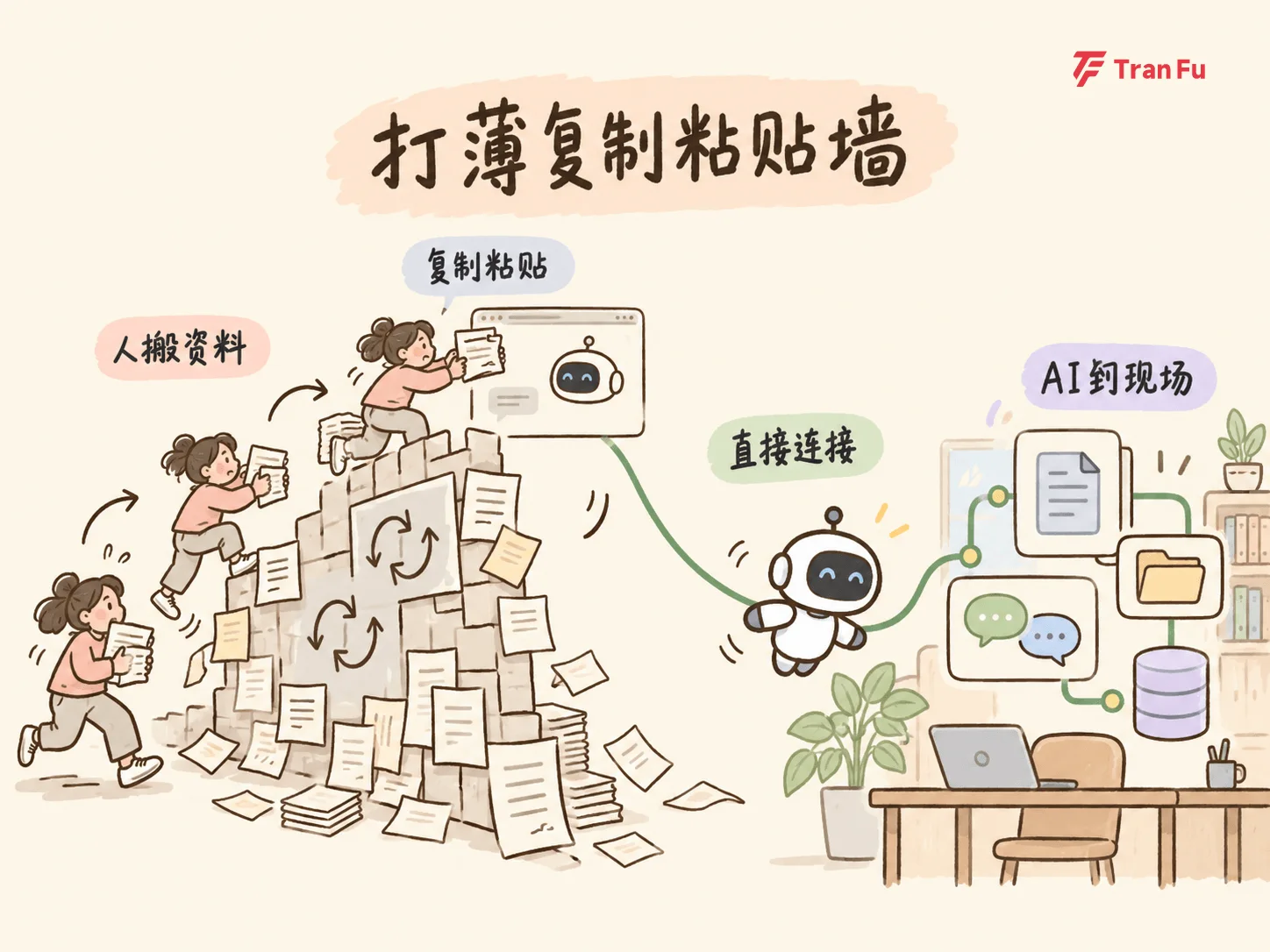
The problem is not AI itself. It is that AI cannot reach the materials in your workflow or write results back to your systems. Between you and AI, there is still a copy-and-paste wall.
Once AI is connected to the workflow, that wall becomes thinner.
AI is not simply smarter; it can finally reach your work materials
Mainstream AI workspaces now support a type of connection that works like a data cable: one end is AI, the other end is your office system. After the relevant feature is supported and authorized, AI can read materials directly or write results back. This can include Lark, Tencent Docs, email, knowledge bases, and some business data sources.
Previously you moved work to AI. Now AI can go to where the work already is.
How do you connect it? In most products, find the connector entry in settings or the plugin center, choose the tool you want to connect, and authorize it. Some workspaces can even guide the process if you ask AI to install the connector, download the related command-line tool, and finish authorization.
But connecting a tool does not make everything possible. Different tools support different actions. Even within the same tool, reading, writing, and sending can be separate permissions. What can actually be done depends on the authorization page and product documentation in front of you. Listing a tool name does not mean every action is supported.
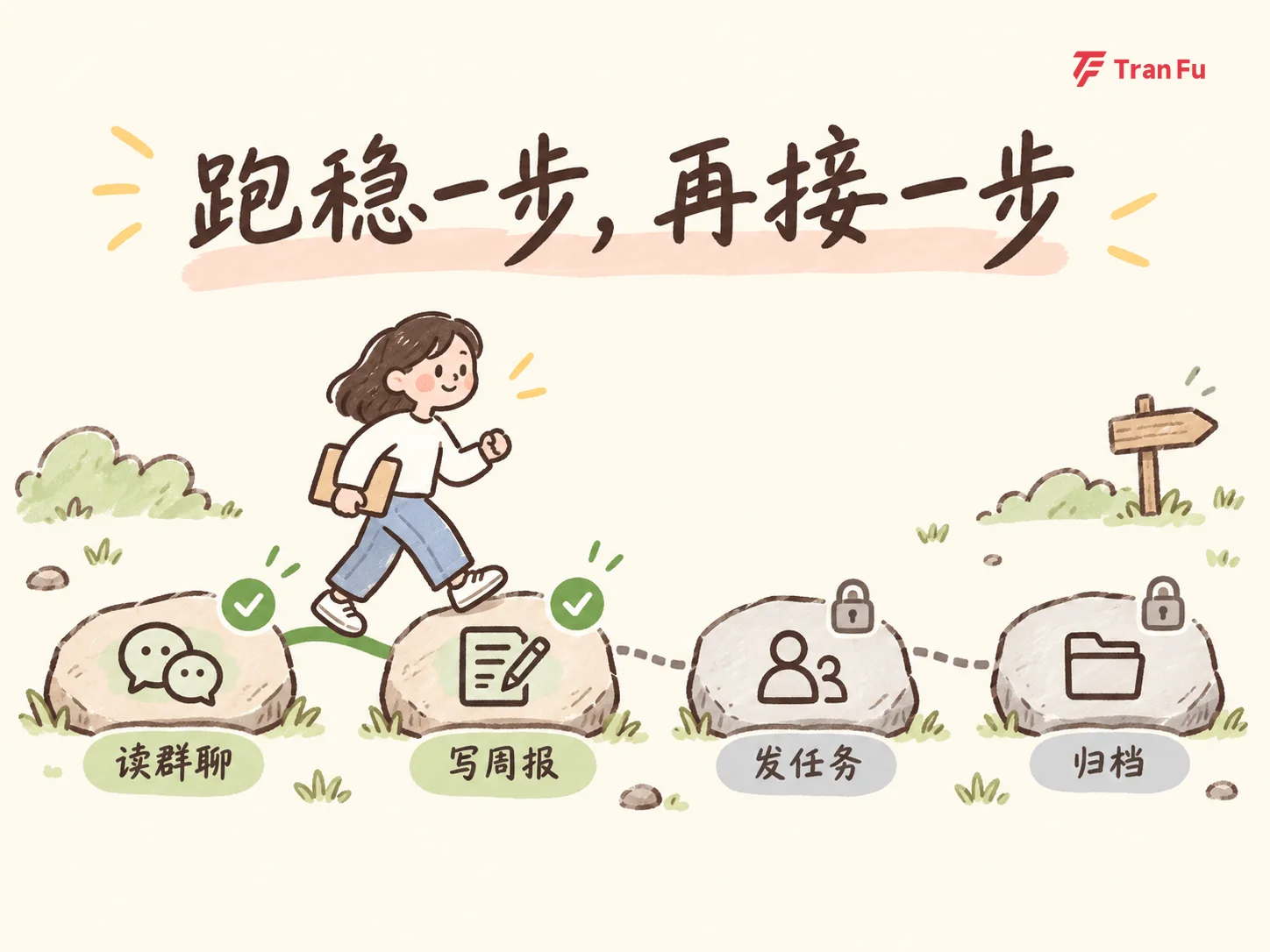
For the first use, do not start with a complex process that crosses three applications and sends messages automatically. Start with the smallest closed loop.
The smallest closed loop: read, write, archive
It has only three steps, and every step reduces manual handoff.
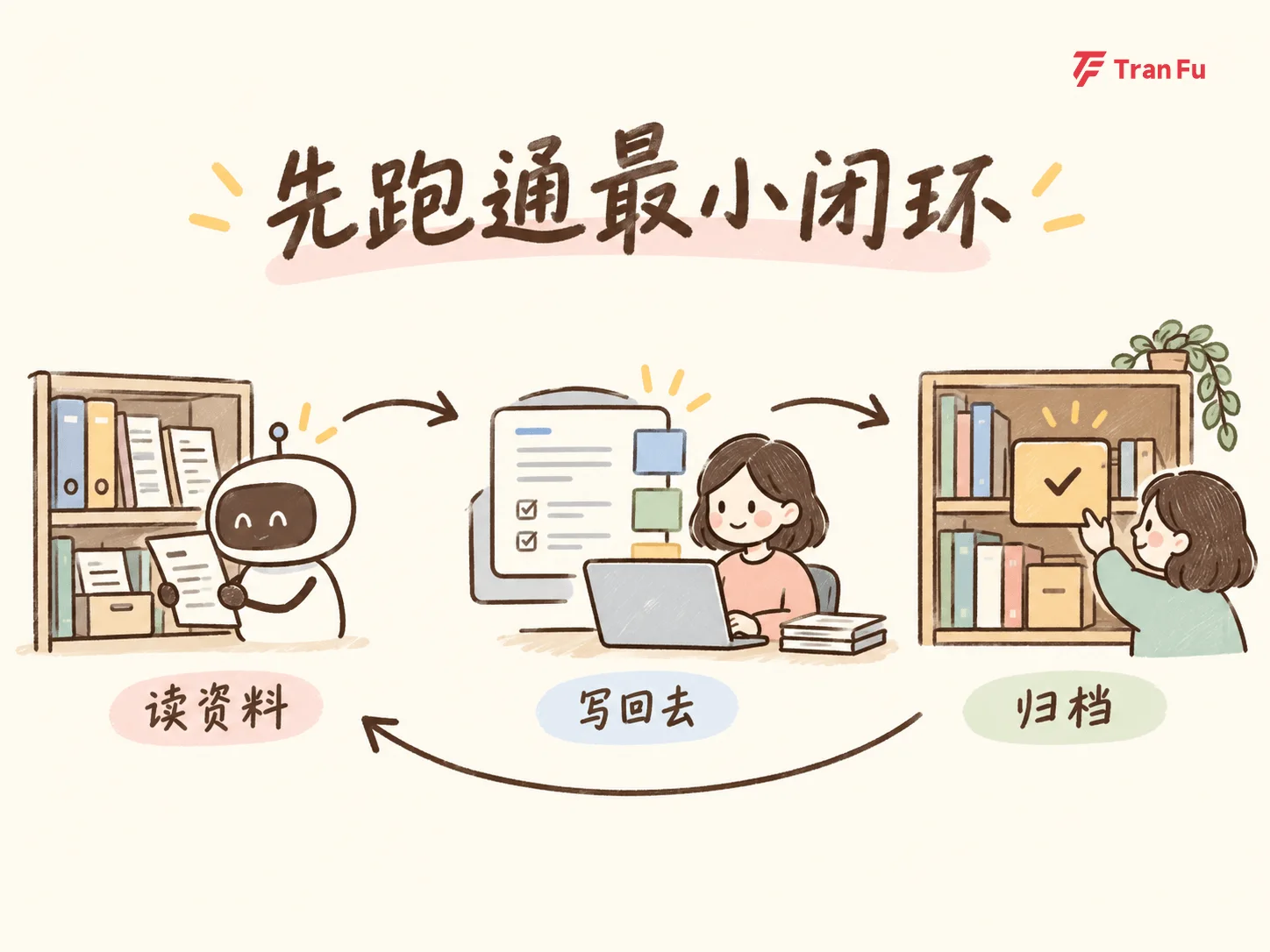
Step one: let AI read your document directly
Previously, you had to copy content into the chat box. After connecting the office tool, you can specify the material directly:
"Use only the Lark document I specified, Q3 Project Progress Summary, and extract three conclusions. If you cannot find it, stop and tell me."
AI reads that document within the scope you authorized. You do not have to move the content manually.
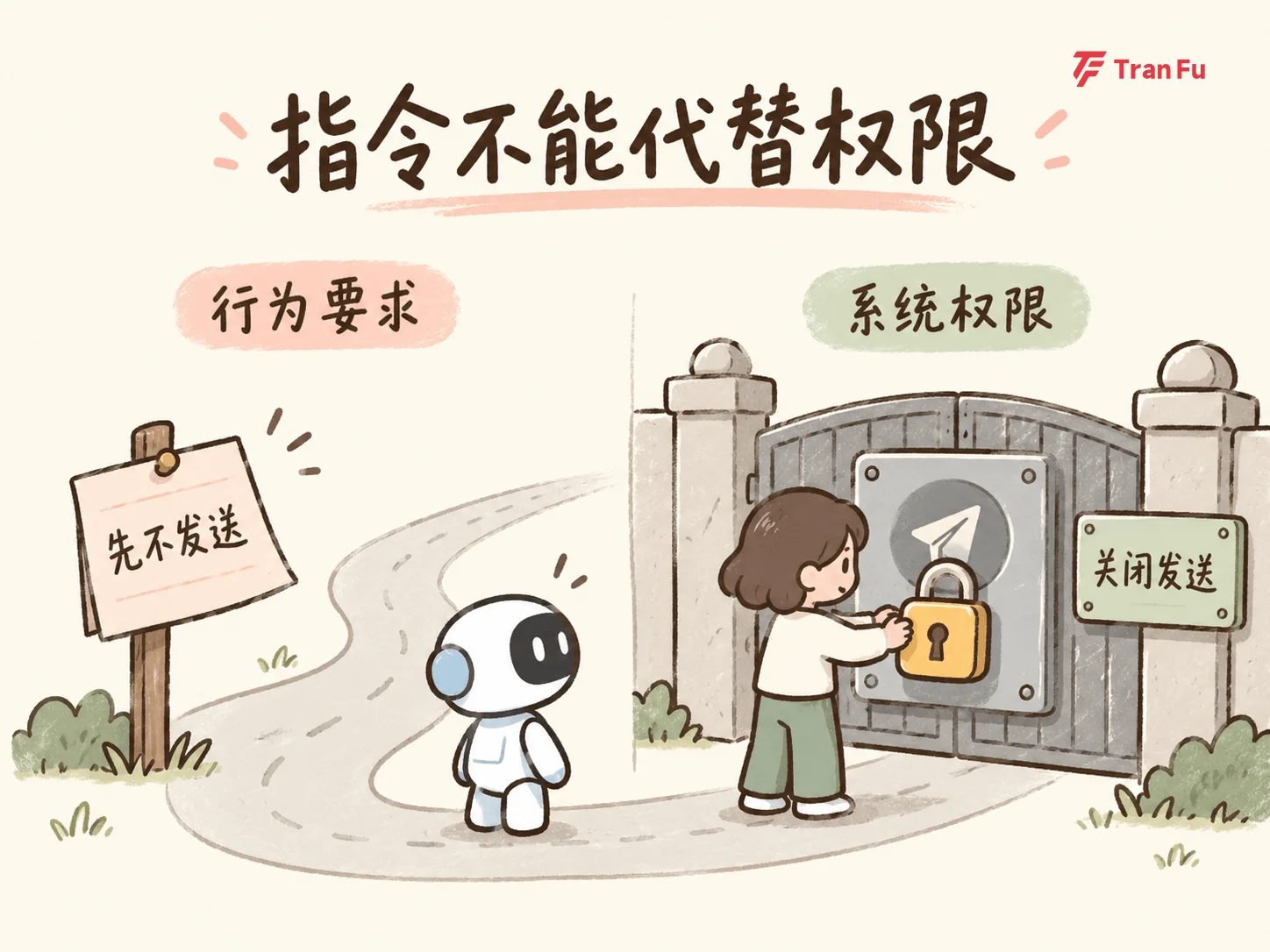
Watch permissions: AI can only read documents that are inside its authorized scope. If the document is outside that scope, AI cannot access it. That is a permission boundary, not an AI failure.
Step two: let AI write the result back
Many people only use the first step, asking AI to read. The second step saves more time: let AI write the result directly back into your system.
There is one easy-to-miss trap. Saying "do not send yet" in the conversation tells AI what to do this time. Turning off send permission limits what it is able to do. Both are useful, but the first should not replace the second.
For the first trial, enable only the permissions needed for the current task. After the process is stable, consider expanding the scope.
Then make the task explicit. You can adapt the following prompt to your topic and date:
"Based on the content just read, prepare a team-facing work document with three sections: Confirmed Items, Unconfirmed Items, and Next Actions. For each action, list the task, owner, due date, and evidence. Mark information that does not appear in the source as Unconfirmed. Do not invent missing details or turn discussion suggestions into decisions. First show the complete content, the save location, and the document name. Wait for my confirmation. Before confirmation, do not create, overwrite, send, or delete anything."
This turns "please handle it" into a deliverable that can be checked item by item. After review, ask AI to save the confirmed content into the target document, assuming the tool supports writing and the permission is authorized. When it is done, open the actual document and check it.
You can compare the conclusions and pending confirmations in the meeting notes against the original materials.
Step three: archive the output to the knowledge base
If your team has a knowledge base, you can add one more step:
"Archive this summary under the Project Notes category in the knowledge base."
This step matters for recurring tasks. If you summarize and archive every week, manual handoff repeats every time. Once connected, the same materials can flow through: action items answer what happens next, the weekly report explains progress, and the team record gives future handoff owners something traceable.
After it works, expand into a larger process step by step
Once the smallest closed loop is stable, gradually connect more steps based on your real work.
For example, many project managers face this every week:
A project chat has accumulated a week of discussion. You need to turn it into a weekly report, send it to the project group, extract several action items, and finally archive the notes to the knowledge base.
Previously, you may have moved it like this:
-
Review chat messages one by one and copy the key information.
-
Wait for AI to organize it, then copy the result, open the weekly report document, and paste it in.
-
Manually send several task messages to the group.
-
Copy another version of the notes and paste it into the knowledge base.
The same materials are moved among several systems, and every step requires manual handoff.
The goal is to let AI gradually reduce these handoffs.
Start with only "read chat plus write report." After it is stable, try connecting "send tasks." Add "archive" last. At each step, verify whether AI found the right materials, wrote to the right location, and waited for your review before sending.
Do not try to automate everything at once. Reduce handoffs one step at a time.
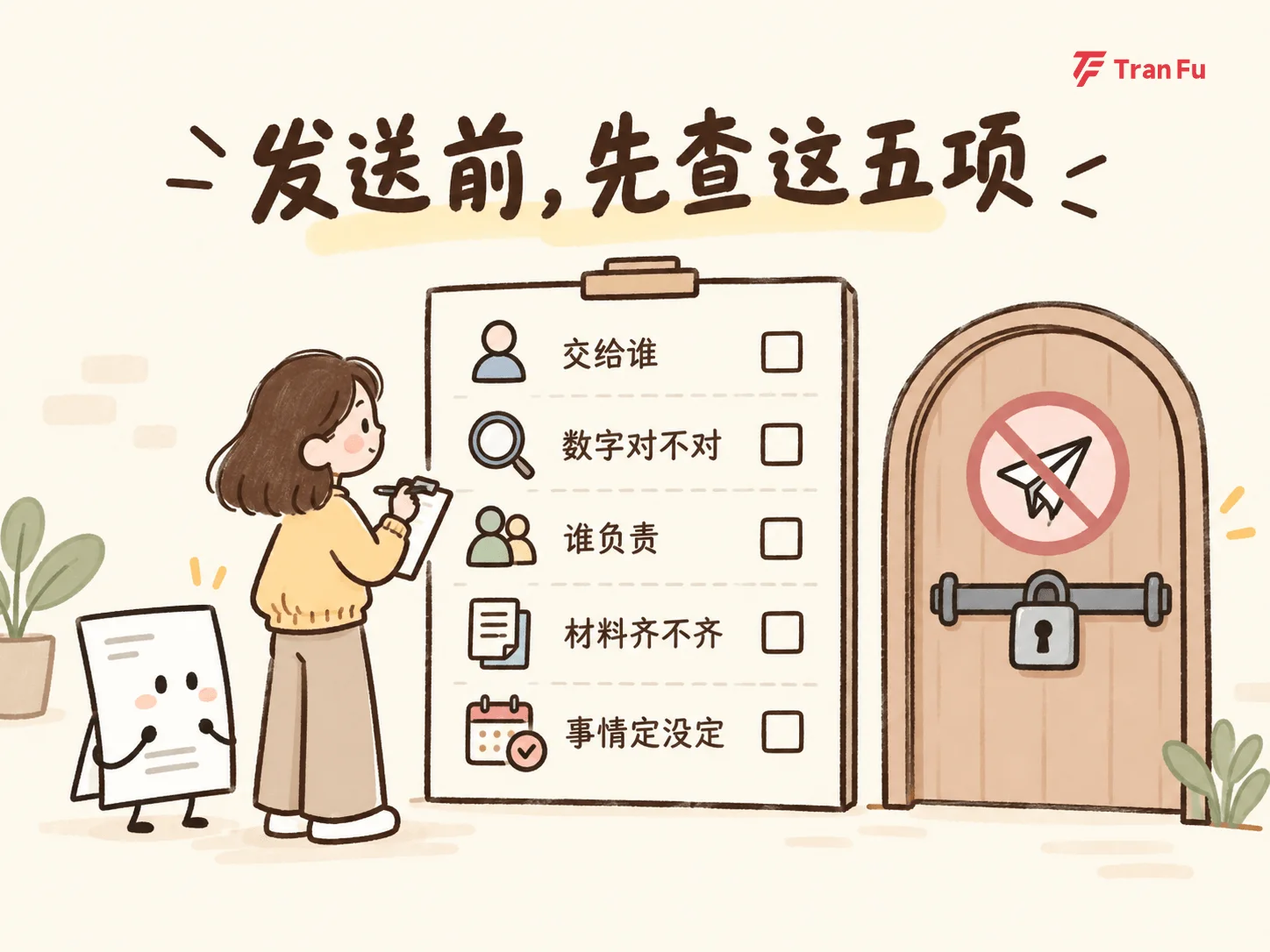
Before sending, keep these five checks for yourself
Before anything written by AI goes out, review it yourself. A convenient connection does not transfer responsibility.
Put the draft and the source side by side, then run through this checklist:
-
Who receives it: check recipients, copied people, or document visibility.
-
Are the numbers correct: review dates, amounts, and quantities instead of only the wording.
-
Who is responsible: confirm that owners come from the source material, and that participants in a discussion are not turned into responsible owners by mistake.
-
Are the materials complete: verify attachments and links, and whether recipients can open them.
-
Was it decided: make sure unconfirmed items were not written as decisions, and suggestions did not become commitments.
Only send after checking. Permissions should follow the task: open read permission when organizing materials, then check the required authorization again before saving or sending. The first run of any workflow should include human confirmation. Knowing why it worked makes the next adjustment easier.
This type of repeated work is worth trying first
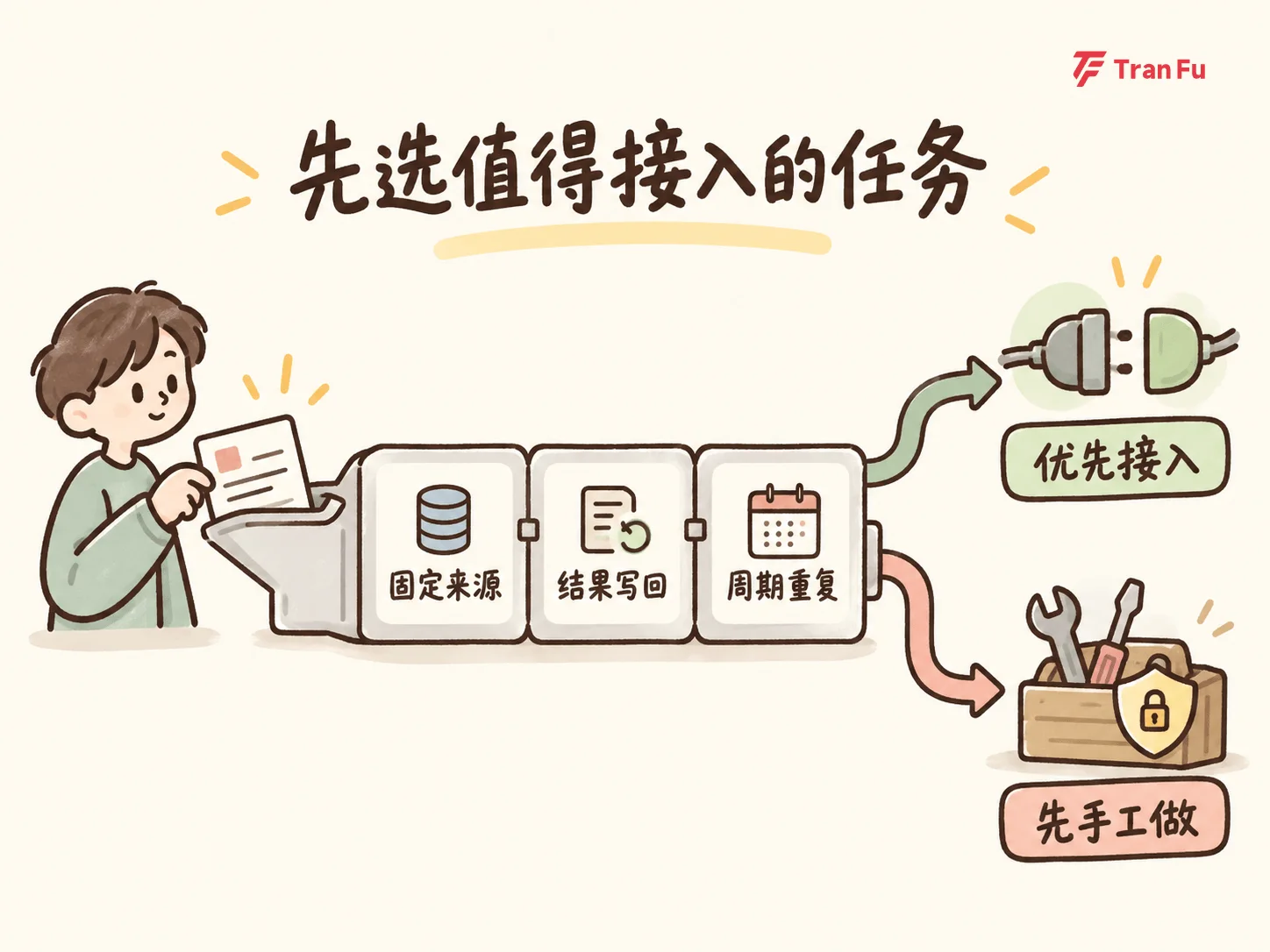
You do not need a complicated evaluation to decide whether a connector is worthwhile. Work with these traits is usually a good candidate:
-
You repeatedly fetch materials from the same place;
-
The result processed by AI needs to return to the original system;
-
The task repeats daily or weekly.
If a task is rare, highly sensitive, and difficult to verify, keeping it manual may be safer and easier.
Final note
After AI finishes writing, two things remain: deliver the result to the right place, and decide whether it is ready to go out. The first can gradually be handed to tools. The second should remain with you.
Pick one weekly task first. Connect one tool, enable only the necessary permissions, and stop before human confirmation. Stabilizing one real workflow is more useful than collecting ten fully automated office schemes.
If you want to try it this week, start with this: let AI read one document you already have, then write the summary back into your system.